May 31, 2026 · Matteo
How to Add Your Shopify Store to Google (2026 Guide)
Your Shopify store does not appear in Google automatically just because it is live. How to add your Shopify store to Google means verifying ownership, submitting your sitemap, and giving Google clean product pages with indexable images and metadata.
This guide covers Search Console setup plus the product image SEO work that helps you rank in Google Search and Google Image Search. Pixly handles the catalog image layer. You still need Search Console for indexing.
Step 1: Verify your store in Google Search Console
- Go to Google Search Console.
- Click Add property and enter your storefront URL (e.g.
https://yourstore.com). - Choose a verification method. Shopify merchants often use the HTML tag or DNS method.
- In Shopify admin: Online Store → Preferences → paste the meta tag if using HTML verification, or add the DNS record at your domain host.
- Click Verify in Search Console.
Once verified, Google can report indexing status, search queries, and Core Web Vitals for your domain.
Step 2: Submit your Shopify sitemap to Google
Shopify sitemap google setup is straightforward once Search Console is verified.
Shopify auto-generates a sitemap index at:
https://yourstore.com/sitemap.xml
That index links to child sitemaps for products, collections, pages, and blog posts (exact list varies by store).
- In Search Console, open Sitemaps (under Indexing).
- Enter
sitemap.xmland click Submit. - Wait for status Success. Errors often mean wrong property URL (http vs https, www vs non-www).
- Re-submit after major catalog launches if Pages report shows low discovery.
Tips:
- Use the same domain variant you verified (prefer
https://canonical). - Password-protected stores block crawling. Remove the storefront password before expecting product URLs in Google.
- Sitemap submit does not replace good on-page SEO. Pair with store SEO checklist.
Step 3: Favicon and brand appearance in Google
Shopify google search favicon results show your site icon next to listings when Google has a valid favicon on file.
- In Shopify admin: Online Store → Themes → Customize → Theme settings → Favicon (or Preferences depending on theme).
- Upload a square 32×32 px or 48×48 px PNG (some themes accept larger squares and downscale).
- Save and view source on your live homepage. Confirm the favicon link tag points to your new file.
- In Search Console, favicon updates are picked up on crawl. There is no separate favicon submit form.
- Allow days to weeks for SERP favicon refresh.
Favicon does not replace Search Console verification. It improves brand recognition in results after you are indexed.
Step 4: Check indexing status
- In Search Console, use URL Inspection for your homepage and a product URL.
- Click Request indexing for important new pages if needed.
- Review Pages report for excluded or error URLs.
Fix broken links, password-protected pages, and duplicate content issues that block indexing.
Step 5: Optimize product images for Google
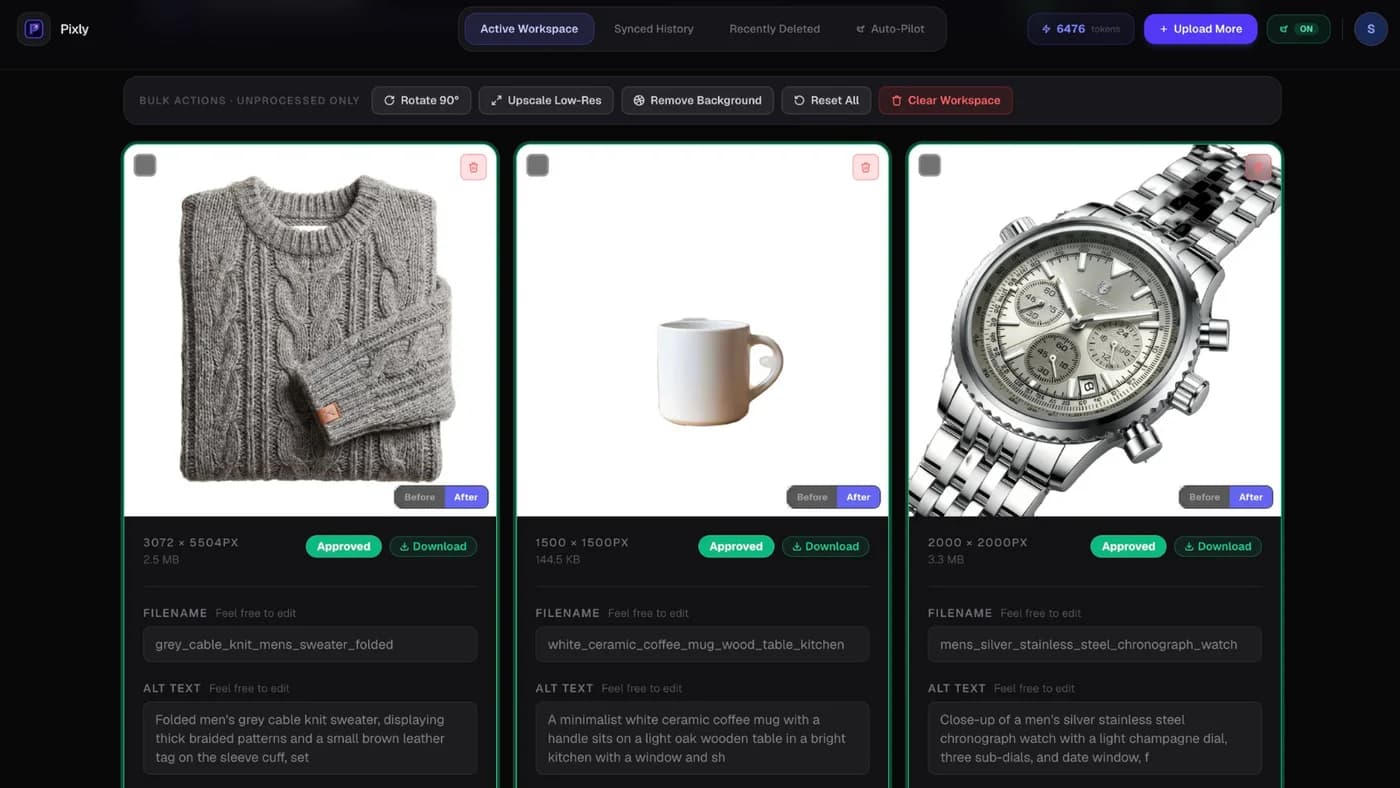
Google Image Search reads alt text, filenames, surrounding page content, and file format. Blank alt text and names like IMG_4832.jpg waste ranking potential on product pages you already worked hard to index.
Manual fix: Edit alt text per image in Products → Media.
Catalog-scale fix: Use AI-generated alt text and SEO filenames, then sync to Shopify after review:
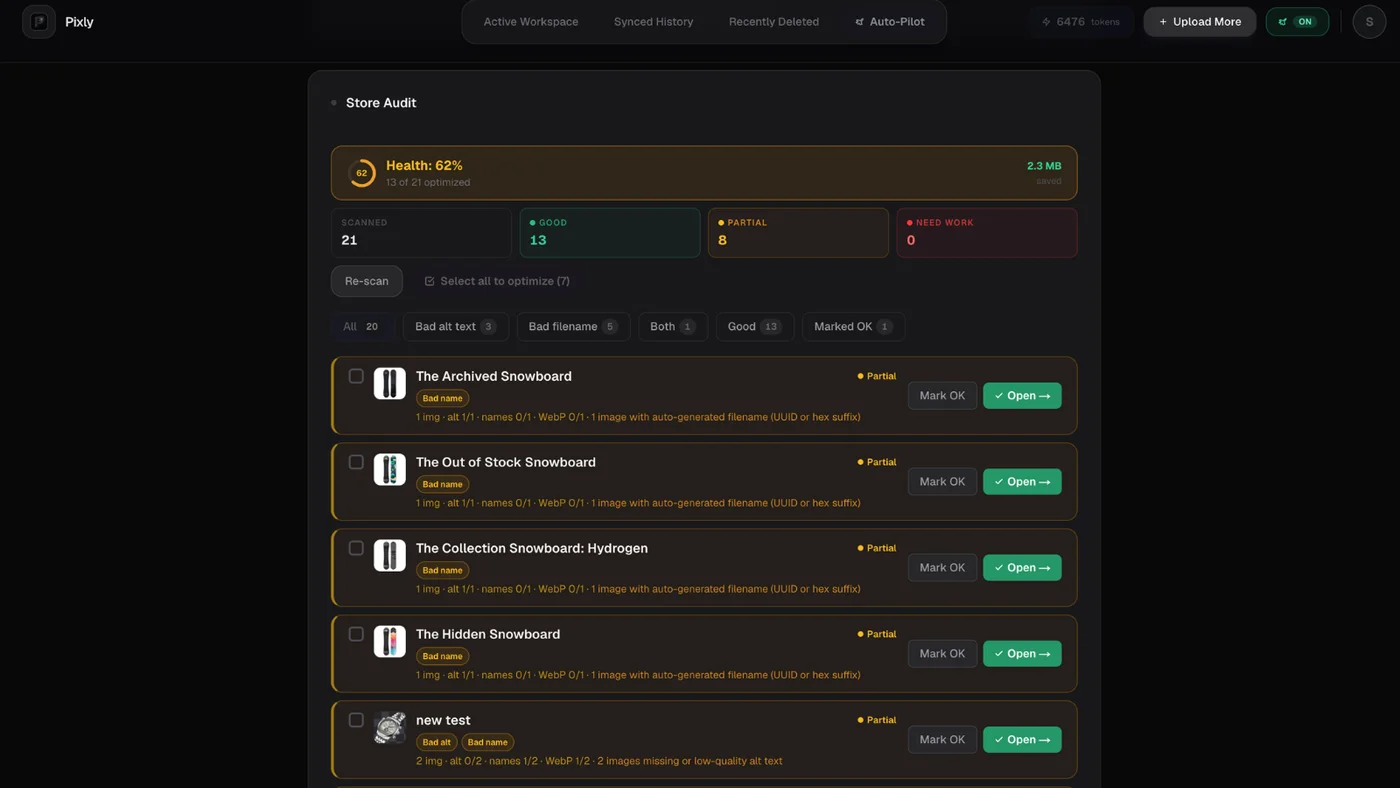
On Growth and Scale, Store Audit finds products with missing alt text or image gaps across your whole catalog:
Lighter WebP files also help page speed, which supports Core Web Vitals. See how to optimize Shopify store speed.
Step 6: Connect Google Analytics (optional but useful)
- Create a Google Analytics 4 property.
- In Shopify: Online Store → Preferences → Google Analytics (or use Shopify's Google channel).
- Link GA4 to Search Console in GA admin for search query data in one place.
Analytics does not replace Search Console for indexing. Use both.
Got questions?
Frequently asked
Bottom line
How to add your Shopify store to Google starts with Search Console verification and sitemap submission. Long-term visibility also depends on product page quality, including optimized images with real alt text.
Install Pixly on Shopify to fix catalog image SEO after you verify in Search Console. How it works · Pricing
Written by Matteo, founder of Pixly. Questions? hello@getpixly.app
Pixly for Shopify
Your product image studio for Shopify
Square WebP, alt text, and clean filenames on every product photo. Review before sync. Start free with 69 tokens every month.
More from Pixly
- How Pixly works — upload, AI analysis, review, Shopify sync
- Features — Store Audit, Auto-Pilot, WebP, alt text
- Pricing — start free with 69 tokens per month
- How to Optimize Shopify Store for SEO (2026 Guide)
- Shopify image size guidelines (2026 Guide)
- Shopify Alt Text SEO (2026 Guide)
- How to Use Pixly on Shopify (2026 Guide)