May 29, 2026 · Matteo
How to Optimize Shopify Store Speed (2026 Guide)
Slow Shopify stores lose sales on mobile before the product gallery finishes loading. If you searched how to optimise shopify store speed, you are usually fighting heavy images, too many apps, or a theme that loads more JavaScript than your catalog needs.
Images are often the fastest win. Product photos repeat on collection pages, search results, and recommendation widgets. One unoptimized 2 MB JPEG multiplied across twenty thumbnails is a speed problem you can fix at the catalog level.
This guide covers how to optimize Shopify store speed in 2026: diagnose the bottleneck, fix product images at scale, and know when to look beyond photos. For replacing files in admin step by step, see how to change images on a Shopify website.
Why Shopify store speed matters
Three reasons merchants care about speed beyond the score itself:
- Mobile shoppers. Most Shopify traffic is mobile. Large image payloads hurt first on 4G and mid-range phones.
- Core Web Vitals. Google uses metrics like LCP (Largest Contentful Paint) in ranking signals. Product hero images often are the LCP element on product pages.
- Conversion. Faster pages reduce bounce on collection and product templates. Speed is not vanity. It is revenue.
Shopify hosts your storefront on a global CDN and serves resized image variants automatically. That helps delivery, but it does not fix oversized uploads, missing compression, or a catalog full of 3 MB PNG product shots you uploaded three years ago.
Quick wins for Shopify speed (priority order)
| Fix | Impact | Effort |
|---|---|---|
| Compress and resize product images | High on product and collection pages | Medium at scale without tooling |
| Convert product photos to WebP | High file size reduction at equal quality | Low with bulk workflow |
| Remove unused Shopify apps | High if apps inject scripts on every page | Low |
| Limit homepage slideshows and autoplay video | Medium on homepage LCP | Low |
| Audit third-party scripts (pixels, chat widgets) | Medium to high | Medium |
| Use a lean theme (Online Store 2.0, minimal JS) | Medium | High (theme change) |
Start with product images if your catalog has hundreds of SKUs and you never standardized file size or format.
How product images slow Shopify stores
Common catalog problems:
- Oversized dimensions. Uploading 4000 px files when 2000 px square is enough. Shopify resizes on delivery, but larger masters still cost storage and sometimes slow admin workflows.
- Heavy formats. PNG for full product photos, or high-quality JPEGs exported at 100% with no compression.
- Too many images per variant. Every gallery image loads on the product page. Duplicates and unused angles add weight.
- No consistent crop. Themes center-crop mixed aspect ratios, sometimes forcing larger effective display areas.
Target for product photos: 2000 × 2000 px square, WebP when possible, under 500 KB per image after compression. Full spec in our Shopify image size guidelines.
How to check Shopify store speed
Before you optimize, measure:
- Shopify admin. Online Store → Preferences or your theme's speed report (availability varies by plan and theme).
- Google PageSpeed Insights (free). Enter your storefront URL. Check mobile and desktop. Read LCP, INP, and CLS under Core Web Vitals.
- WebPageTest or Lighthouse in Chrome DevTools for a second opinion on specific templates (homepage, collection, product).
Save a baseline screenshot or score. Re-test the same URLs after image changes so you know what moved.
Diagnose image problems across your catalog
PageSpeed tells you that images are heavy. It does not list which SKUs still ship 2 MB files or skip WebP.
Manual spot check:
- Open three slow product pages.
- In Chrome DevTools → Network → filter Img.
- Note file sizes and formats on the largest requests.
Catalog-wide check with Pixly Store Audit (Growth and Scale):
Store Audit scans connected Shopify products for image SEO and quality gaps: missing alt text, non-WebP images, low-resolution alerts, and products that need work. You get a health score and flagged SKU list on the Auto-Pilot page instead of guessing from five random products.
After a scan, the product list shows which SKUs still need alt text, WebP, or sizing fixes:
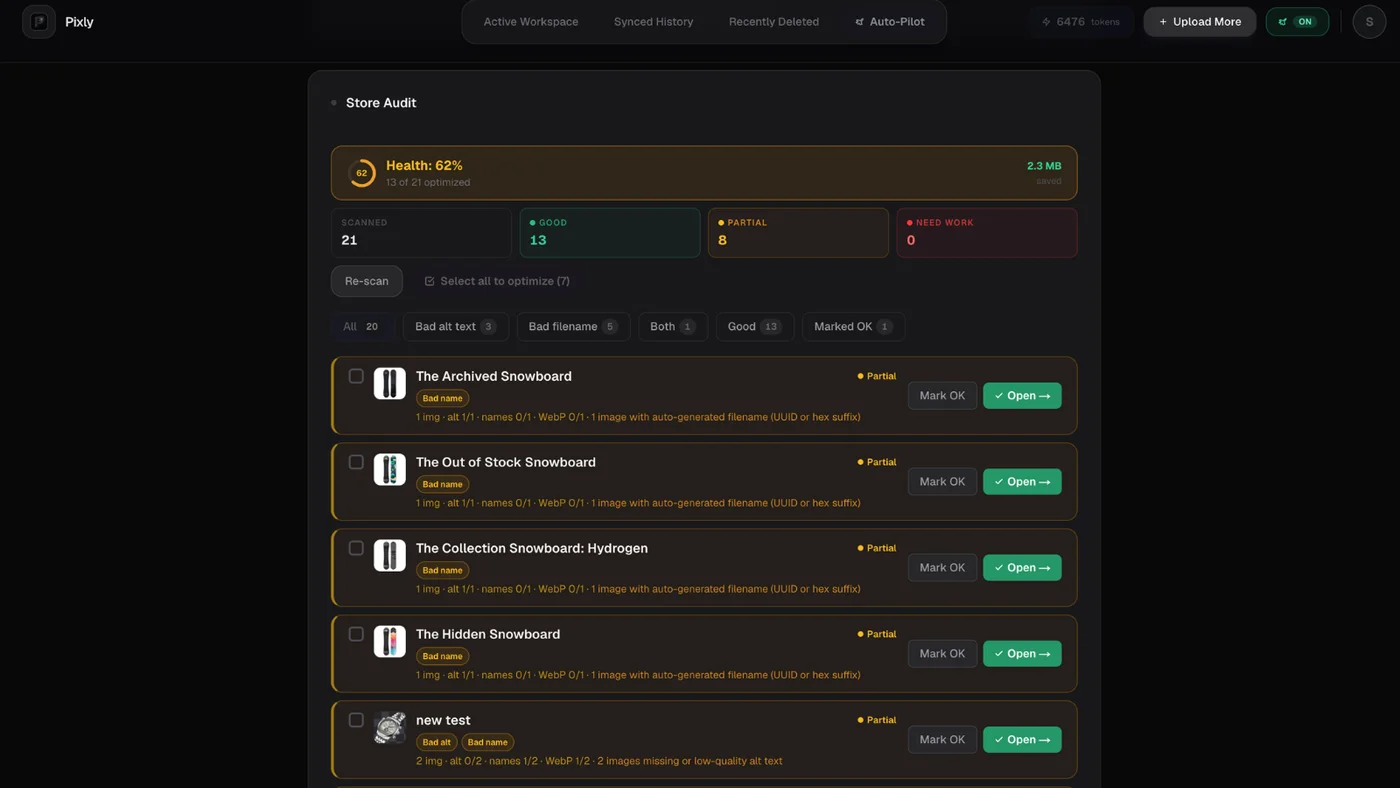
Pair Store Audit with PageSpeed: fix the products and templates that contribute most to LCP first (hero products, best sellers, homepage-featured collections).
How to optimize Shopify product images for speed
Manual approach (small catalogs)
- Export each product photo at 2000 × 2000 px square.
- Compress and convert to WebP (or JPEG at 80–85% quality).
- Re-upload via Products → Media → Replace.
- Re-run PageSpeed on product and collection URLs.
Works for under ~20 products. Does not scale to hundreds without automation.
Bulk approach (large catalogs)
Use a pipeline that:
- Downscales to a consistent square size
- Converts to WebP (with review before sync)
- Compresses without visible quality loss
- Syncs back to Shopify after approval
In Pixly Review, turn on WebP and confirm the square crop before approving. This is where you shrink file size without guessing what the storefront will receive:
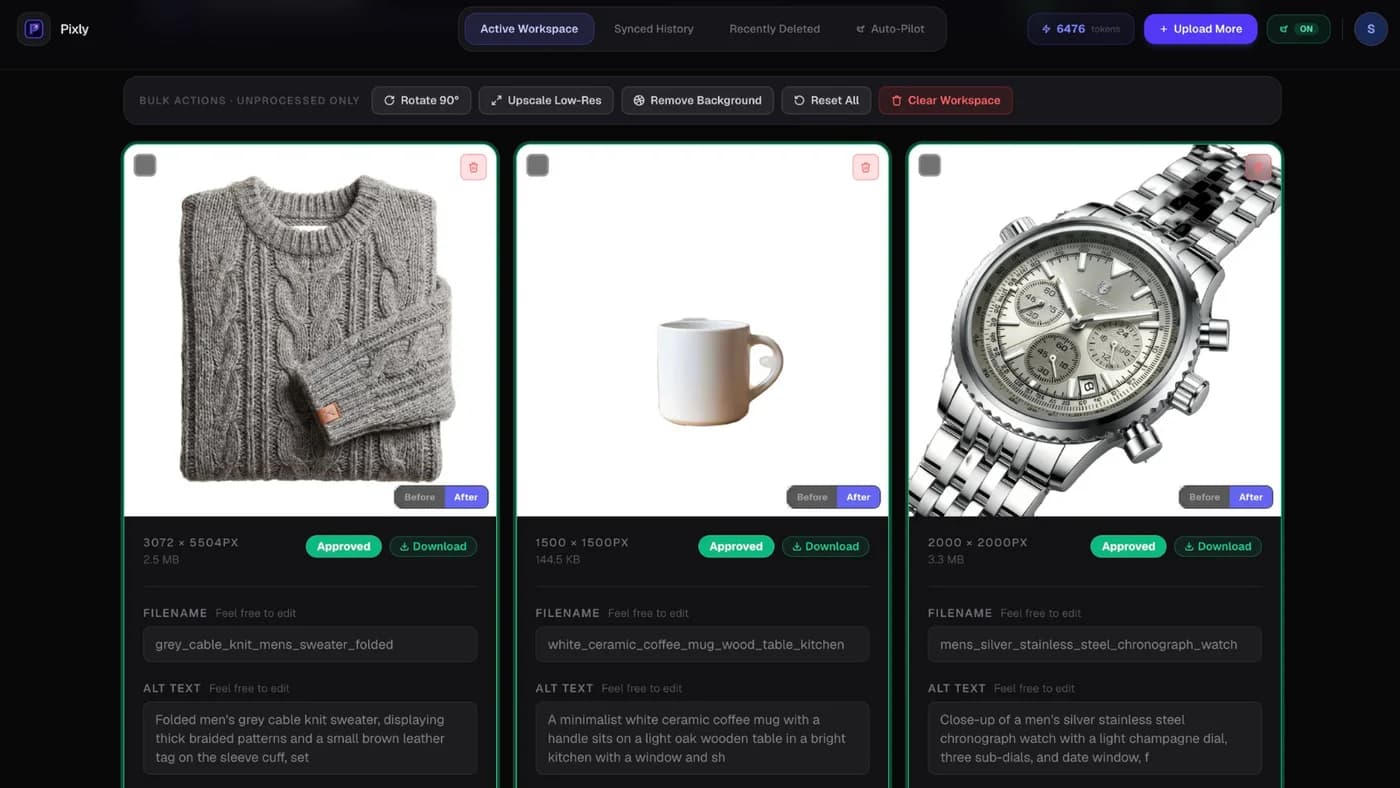
Pixly converts approved images to WebP by default, center-crops to 1:1, and pushes optimized files to Shopify after you review. You control WebP per image in Review. Nothing syncs until you approve (unless you enable full Auto-Pilot on Scale).
Side benefit: lighter images also help Google Image Search when paired with alt text and SEO filenames. Speed and image SEO overlap.
Lazy loading images on Shopify
How to lazy load images in Shopify and lazy load images shopify searches usually mean deferring below-the-fold images so the first screen loads faster.
Modern Shopify themes and the CDN often lazy-load images that are not in the initial viewport. You typically do not need custom code for standard product galleries.
What you can control:
- Shrink the LCP image. The first product or hero image should be WebP and right-sized. Lazy load does not help if the largest paint is still a 3 MB JPEG.
- Theme editor sections. Homepage slideshows and image banners can load many large files at once. Reduce slide count or compress banner assets. Theme-specific steps: how to add an image to Shopify homepage.
- Avoid lazy-loading above-the-fold heroes in custom theme edits. Some merchants add
loading="lazy"everywhere and accidentally delay the LCP candidate.
Custom lazy load (advanced): In Online Store 2.0 themes, image blocks may expose lazy load settings in Customize. For Liquid edits, Shopify documents the loading attribute on image tags. Test mobile LCP after any theme code change.
Lazy load is a delivery tactic. Image weight is still the main lever. See convert all images to WebP and stop Shopify compressing images for catalog fixes.
How to improve page speed in Shopify (beyond images)
How to improve page speed in Shopify searches often overlap with this guide. Priority order after image optimization:
| Lever | Action |
|---|---|
| Apps | Remove unused apps injecting scripts on every page |
| Theme | Prefer lean Online Store 2.0 themes; audit unused JavaScript in Lighthouse |
| Fonts | Limit web font families and weights |
| Third-party scripts | Defer chat widgets, pixels, and heatmaps where possible |
| Homepage | One optimized hero vs five-slide autoplay carousel |
| Preconnect | Theme or app handles CDN preconnect; avoid duplicate tags |
Re-test the same URLs in PageSpeed after each change so you know what moved.
Beyond images: other Shopify speed levers
Product photos are the highest-ROI fix for many stores, but not the only one.
Remove or replace heavy apps
Each installed app can inject JavaScript on every page load. Audit Settings → Apps and sales channels. Remove apps you no longer use. Prefer apps that load assets only on pages that need them.
Simplify the homepage
Hero slideshows, background videos, and large uncompressed banners often drive homepage LCP. Reduce slide count, compress banner assets, or replace video heroes with a single optimized image.
Theme and font choices
System fonts or a single web font family load faster than stacking four Google Font weights. Switching themes is a bigger project, but bloated theme JavaScript shows up clearly in Lighthouse "Reduce unused JavaScript" audits.
Lazy loading (summary)
See Lazy loading images on Shopify above for full detail. Shrink the LCP image first; lazy load helps below-the-fold assets on modern themes.
Shopify speed optimization checklist
- Run PageSpeed Insights on homepage, top collection, and best-selling product URL
- Note LCP element (often a product or hero image)
- Standardize product images to 2000 px square, WebP, under 500 KB
- Run Store Audit (Growth/Scale) or a manual network audit on worst offenders first
- Remove unused apps and audit third-party scripts
- Re-test the same URLs after changes
- Pilot 10 products before catalog-wide sync
Got questions?
Frequently asked
What to read next
- Shopify image size guidelines for dimensions and format targets
- How to change images on a Shopify website for manual replace steps in admin
- Pixly features for Store Audit, WebP, and Auto-Pilot
- Pricing and FAQ for plans and tokens
Bottom line
How to optimize Shopify store speed starts with measuring, then fixing what actually loads on your templates. For most product-heavy stores, that means catalog images: smaller files, WebP, consistent dimensions, synced across every SKU.
Manual compression works for a few products. A growing catalog needs a review-first bulk workflow so speed fixes do not take a month of admin clicks.
Install Pixly on Shopify and run a pilot batch on the free plan (WebP, alt text, review). Upgrade to Growth or Scale when you need Store Audit across the full catalog.
Written by Matteo, founder of Pixly. Questions? hello@getpixly.app
Pixly for Shopify
Your product image studio for Shopify
Square WebP, alt text, and clean filenames on every product photo. Review before sync. Start free with 69 tokens every month.
More from Pixly
- How Pixly works — upload, AI analysis, review, Shopify sync
- Features — Store Audit, Auto-Pilot, WebP, alt text
- Pricing — start free with 69 tokens per month
- Shopify image size guidelines (2026 Guide)
- How to Change Images on Shopify Website (2026 Guide)
- Shopify Convert All Images to WebP (2026 Guide)
- How to Stop Shopify from Compressing Images (2026 Guide)