May 26, 2026 · Matteo
Bulk Upload Photos to Shopify (2026 Guide)
Launching 200 SKUs or refreshing a supplier catalog means one thing: you need to bulk upload photos to Shopify without living in admin for a week. Shopify supports bulk product creation, but image workflows have sharp limits.
This guide covers native bulk paths, where they break, and how to upload plus optimize at scale with review before anything goes live.
Quick comparison: bulk photo upload methods
| Method | Upload images? | Optimize + alt text? | Best for |
|---|---|---|---|
| Products → Import | Via CSV URLs only | No | New products with hosted image URLs |
| Shopify admin (multi-select) | Limited per product | No | Small batches |
| Third-party import apps | Yes | Varies | Migrations |
| Pixly (import + review + sync) | Yes | WebP, alt, crop, filenames | Catalog optimization at upload time |
Method 1: CSV product import with image URLs
Shopify's product CSV accepts an Image Src column with public URLs.
- Host images on a server or drive with direct links.
- Build a CSV with handle, title, and Image Src.
- Go to Products → Import → upload CSV.
Limits:
- URLs must be reachable when Shopify fetches them
- No built-in resize, WebP, or alt text generation
- Errors on bad URLs fail rows silently or in import logs
- Variant image mapping gets messy fast
Works for migrations. Weak for ongoing SEO optimization.
Method 2: Upload many files per product in admin
For a single product you can drag multiple files into Media.
- Products → open product.
- Drag a folder of images into Media.
- Assign images to variants if needed.
- Save.
You still edit one product at a time. At 100 products this is not a bulk workflow, it is repetitive manual work.
Method 3: Bulk upload with optimization (Pixly)
Pixly treats bulk upload as the start of a pipeline, not the end.
Step 1: Upload or import from Shopify
Drag local files or pull existing product media from your connected store:
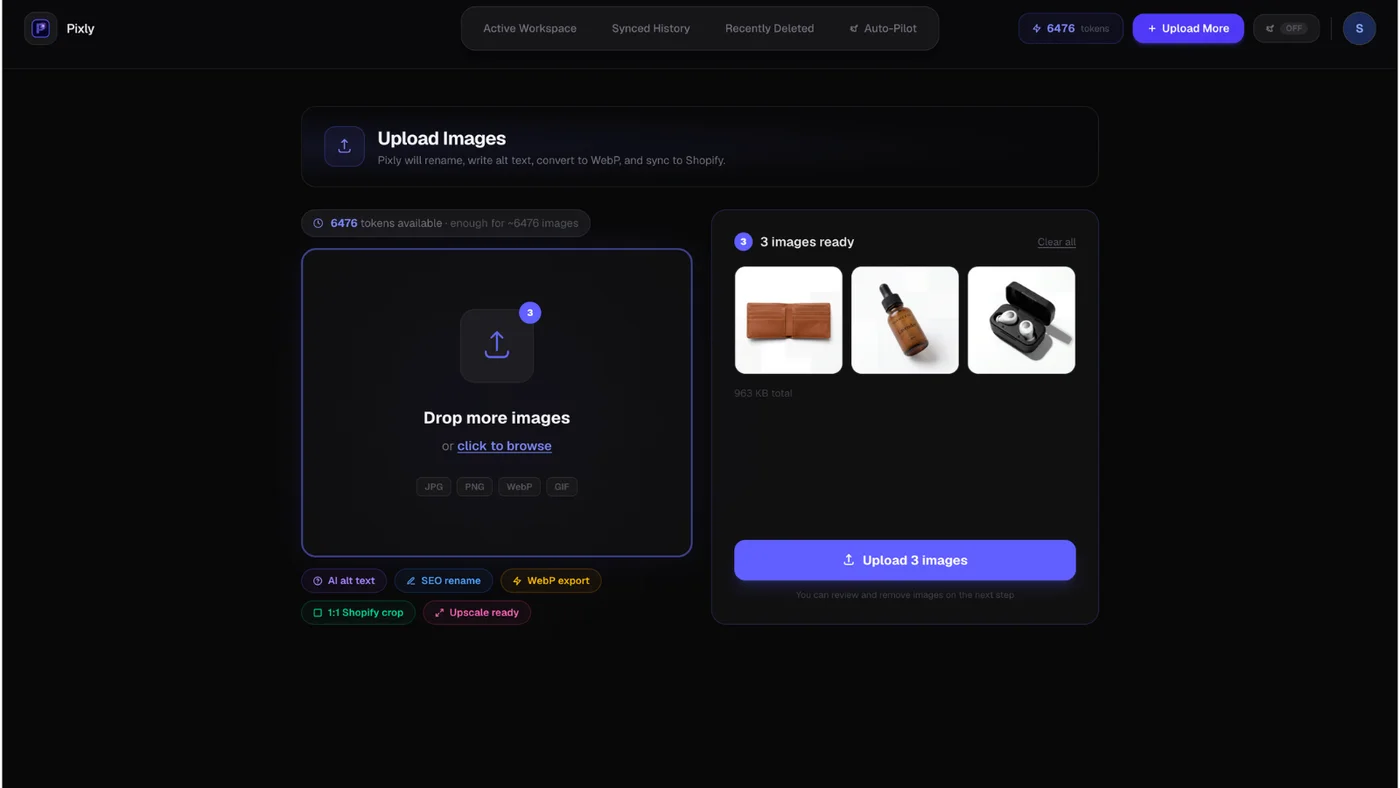
Step 2: Review each image
Before sync, check square crop, WebP setting, alt text, and SEO filename:
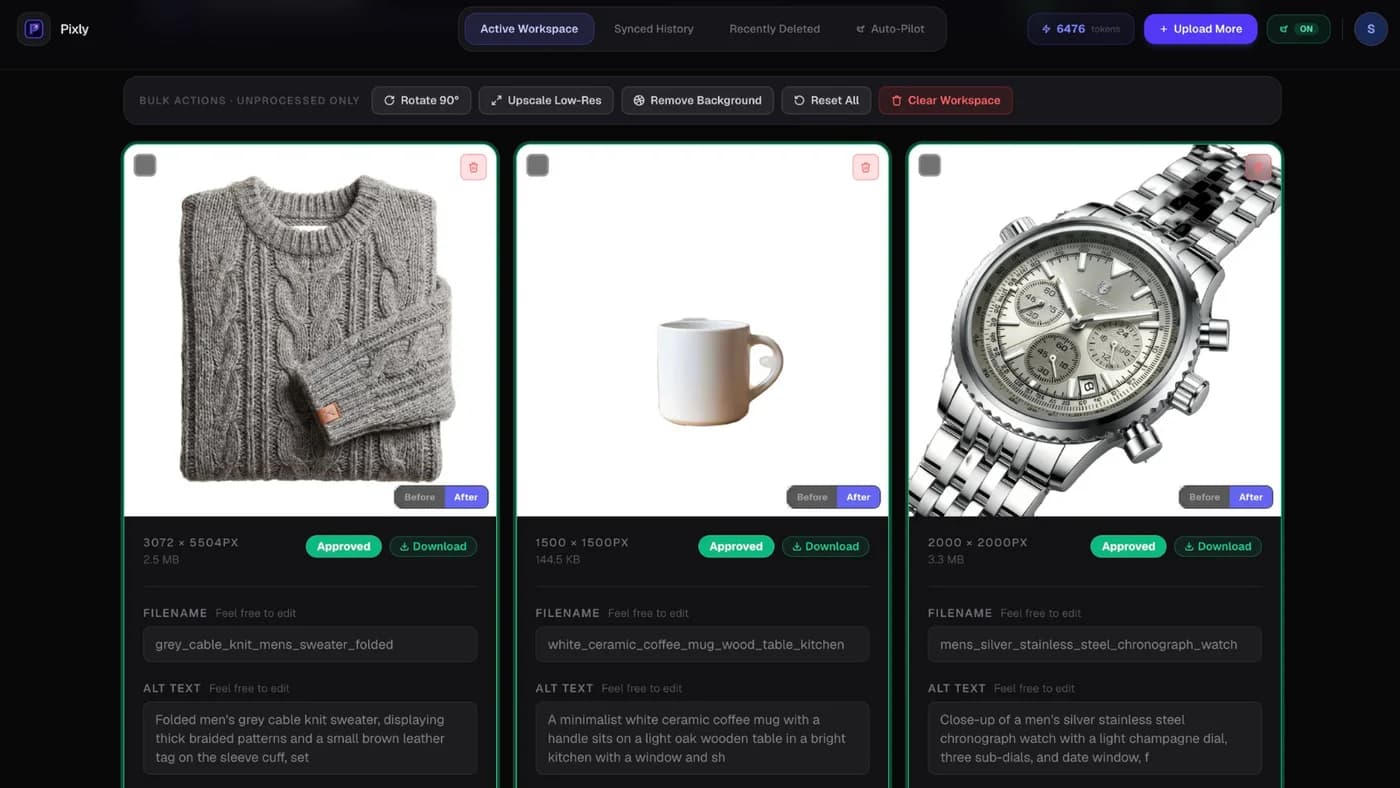
Bulk approve when a batch looks consistent.
Step 3: Sync back to Shopify
Optimized files and metadata push to product media via the Admin API:

Time saved: Manual upload plus alt text on 30 images runs about 3.5 hours. The same batch in Pixly is roughly 3.5 minutes after review, per our how it works benchmarks.
Prepare files before any bulk upload
| Check | Target |
|---|---|
| Dimensions | ~2000 × 2000 px square for product photos |
| Format | WebP or JPEG; WebP preferred for weight |
| Filenames | Descriptive slugs, not IMG_4832.jpg |
| Naming consistency | Match CSV handles or SKUs if importing |
| Folder structure | One folder per product or SKU label |
See Shopify image size guidelines for full specs.
Bulk upload mistakes to avoid
- Uploading 4000 px masters when 2000 px is enough (slow pages)
- Skipping alt text on every image in the batch
- Mixing portrait and square photos (uneven collection grids)
- Importing CSV image URLs that expire before Shopify fetches them
- Syncing hundreds of images without a 10-product pilot first
Got questions?
Frequently asked
Bottom line
Bulk upload photos to Shopify is possible through CSV and apps, but native tools stop at file delivery. If you also need WebP, square crops, alt text, and SEO filenames, upload through a review-first pipeline.
Install Pixly on Shopify and run your first bulk batch on the free plan.
Written by Matteo, founder of Pixly. Questions? hello@getpixly.app
Pixly for Shopify
Your product image studio for Shopify
Square WebP, alt text, and clean filenames on every product photo. Review before sync. Start free with 69 tokens every month.
More from Pixly
- How Pixly works — upload, AI analysis, review, Shopify sync
- Features — Store Audit, Auto-Pilot, WebP, alt text
- Pricing — start free with 69 tokens per month
- How to Change Images on Shopify Website (2026 Guide)
- How to Bulk Edit Alt Text in Shopify (2026 Guide)
- Shopify image size guidelines (2026 Guide)