May 26, 2026 · Matteo
Shopify Auto Optimize Product Images (2026 Guide)
Every new SKU you add is another chance to ship heavy JPEGs and blank alt text. Shopify auto optimize new product images sounds like a dream until an app overwrites your catalog without asking. Pixly Auto-Pilot watches new products and queues optimization, with modes that keep you in control.
This guide explains Semi-Auto vs Full Auto, plan limits, and how Auto-Pilot fits the review-first pipeline.
What Auto-Pilot does
When enabled on a connected store, Auto-Pilot:
- Detects new or updated products via Shopify webhooks
- Queues product media for the Pixly pipeline (alt text, WebP, square crop, filenames)
- Runs analysis based on your mode (Semi-Auto or Full Auto)
- Syncs only according to your approval rules
Auto-Pilot focuses on product media, not theme banners or collection hero art.
Semi-Auto vs Full Auto
| Mode | Behavior | Best for |
|---|---|---|
| Semi-Auto | Processes new products; you review and approve before sync | Most merchants starting out |
| Full Auto | Processes and syncs without per-image review (Scale plan) | High-volume stores with trusted presets |
Default Pixly workflow keeps review before sync unless you explicitly enable full automation on eligible plans.
Enable Auto-Pilot in Pixly
Open Auto-Pilot from the Pixly nav on a connected store:
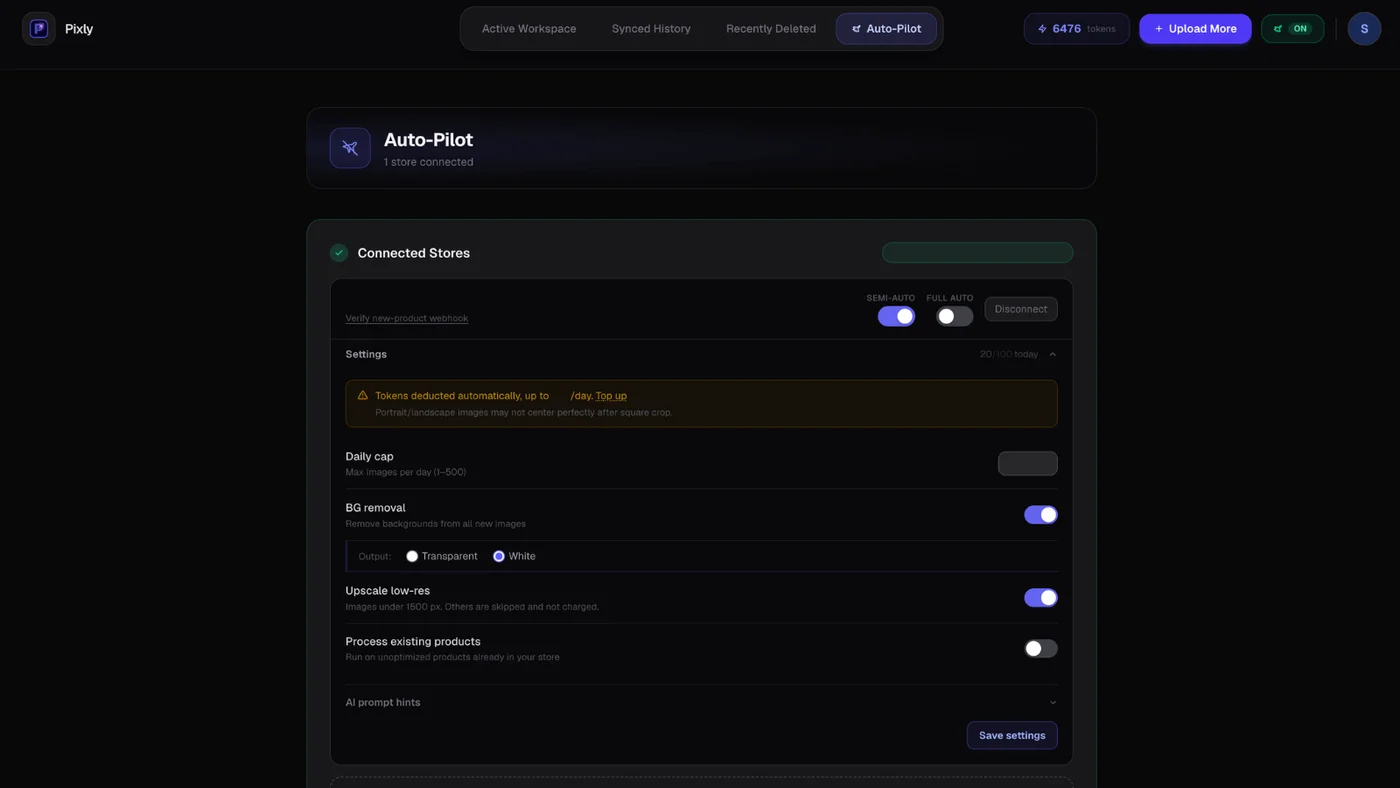
- Choose Semi-Auto or Full Auto (plan-dependent).
- Confirm the store webhook is connected (Pixly handles this on install).
- Add a new test product in Shopify with at least one image.
- Watch the job appear in Pixly workspace or suggested queue.
- Review output before sync on Semi-Auto.
Daily limits by plan
Auto-Pilot requires a Growth or Scale plan. It respects token budgets and daily caps on your tier. See Pixly pricing for current limits.
If you hit the cap, new products queue for the next window rather than failing silently.
Auto-Pilot vs manual upload
| Workflow | Trigger | Control |
|---|---|---|
| Manual upload | You drag files or import catalog | Full per-batch review |
| Store Audit | You scan existing catalog gaps (Growth/Scale) | Prioritized backlog |
| Auto-Pilot | New product in Shopify | Ongoing, mode-dependent review |
Use Auto-Pilot so new products never ship unoptimized. Run Store Audit once (Growth/Scale) to fix historical gaps.
What Auto-Pilot optimizes
On each approved image (defaults):
- WebP conversion (on by default)
- 1:1 center crop at 2000 × 2000 px (2048 when upscale approved)
- AI alt text from visual analysis
- SEO filename proposal
- Optional AI upscale when low-res alert triggers (your approval, +4 tokens)
Nothing replaces your originals in Shopify until sync completes.
Setup checklist
- Connect Shopify store via OAuth (no password stored)
- Enable Auto-Pilot mode on Growth+ plan if required
- Run a test product with Semi-Auto first
- Confirm sync in Sync history

Got questions?
Frequently asked
Bottom line
Shopify auto optimize new product images should not mean blind overwrite. Auto-Pilot queues new SKUs through the same pipeline as manual uploads, with Semi-Auto keeping review in the loop.
Install Pixly on Shopify and enable Auto-Pilot on your test store first.
Written by Matteo, founder of Pixly. Questions? hello@getpixly.app
Pixly for Shopify
Your product image studio for Shopify
Square WebP, alt text, and clean filenames on every product photo. Review before sync. Start free with 69 tokens every month.
More from Pixly
- How Pixly works — upload, AI analysis, review, Shopify sync
- Features — Store Audit, Auto-Pilot, WebP, alt text
- Pricing — start free with 69 tokens per month
- Shopify Store Audit Image SEO (2026 Guide)
- How to Use Pixly on Shopify (2026 Guide)
- Bulk Upload Photos to Shopify (2026 Guide)
- How to Change Images on Shopify Website (2026 Guide)