26 maggio 2026 · 3 min di lettura
Upscaling delle foto prodotto Shopify a bassa risoluzione (Guida 2026)
Upscaling delle foto prodotto Shopify a bassa risoluzione: quando l'upscaling con AI funziona, obiettivo 2048px, come sistemare le foto fatte con lo smartphone e revisione prima della sincronizzazione.
Supplier sent 800 px photos. You shot variants on a phone. Zoom looks soft and returns climb. Upscale low resolution Shopify product images is the fix when re-shooting is not an option this week.
This guide covers when upscale helps, when it does not, manual options, and AI upscale to 2048 px with human approval before sync.
When low resolution hurts Shopify sales
| Symptom | Likely cause |
|---|---|
| Soft zoom on product page | Shortest side under ~1000 px |
| Pixelated collection grid | Tiny masters scaled up by theme |
| Google Merchant disapprovals | Image too small for policy (category-dependent) |
| Returns citing "looks different" | Detail not visible in gallery |
Pixly flags low-res alert when min(width, height) is under 1500 px. That is a practical warning, not a print DPI reading.
Can you upscale in Shopify admin?
No native upscale tool. Shopify stores what you upload. Fix sources outside admin or via an optimization app before sync.
Manual upscale options
- Photoshop Super Resolution or similar desktop AI
- Topaz Gigapixel, ON1 Resize, etc.
- Re-shoot at 2000 px+ (best quality when possible)
Manual upscale works for a handful of SKUs. Catalog-wide runs need batch tooling and QA.
AI upscale in Pixly (2048 px, review first)
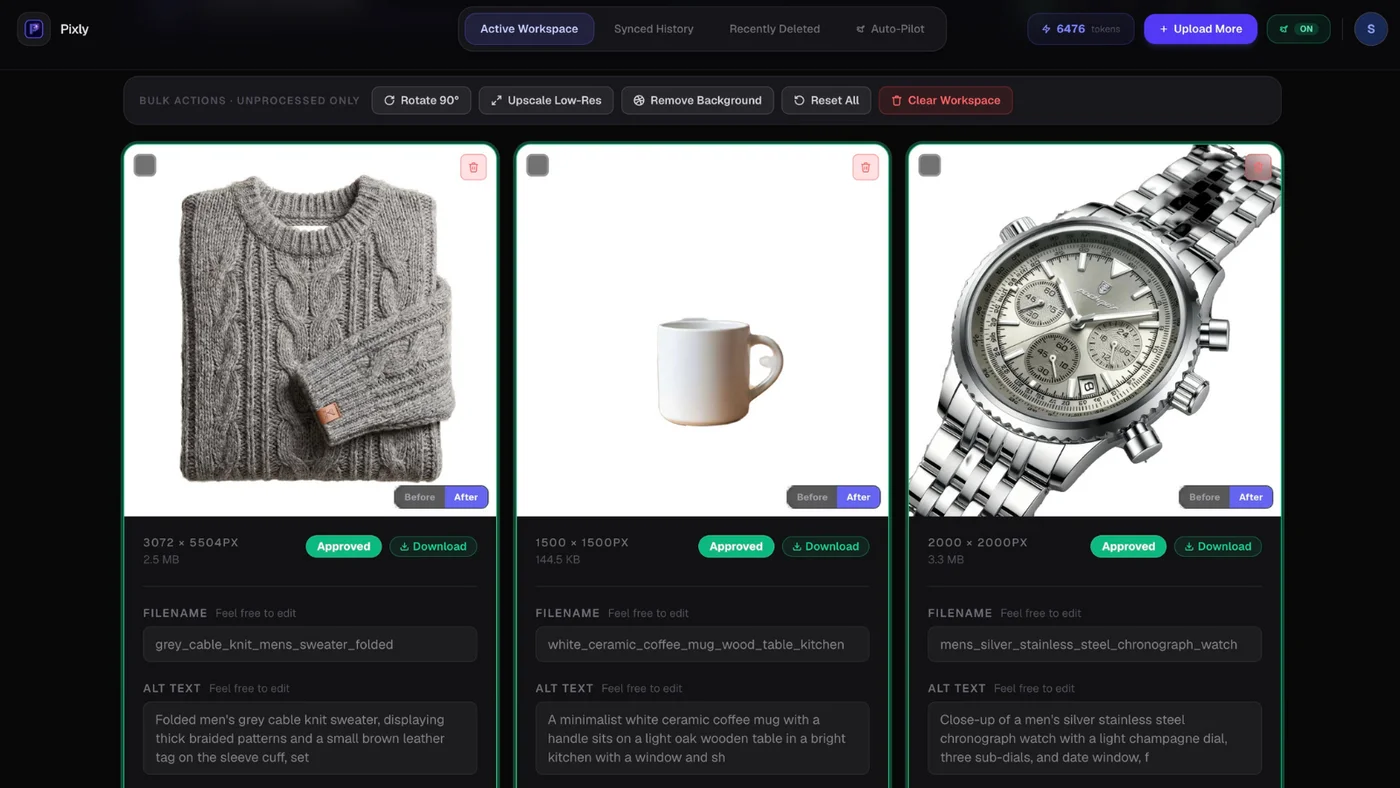
Optional AI upscale runs only when you approve it (+4 tokens, 5 tokens total including analysis). Target width: 2048 px, aspect preserved, then 1:1 center crop for Shopify grid consistency per Pixly pipeline rules.
Review shows output dimensions before sync:
When to approve upscale:
- Source is soft but composition is good
- You cannot re-shoot before launch
- Zoom complaints or low-res flags on key SKUs
When to skip:
- Image is blurry from motion, not pixels
- Source is already 2000 px+ (no gain)
- Wrong product in frame (fix content, not pixels)
See Shopify image size guidelines for pixels vs DPI confusion.
Upscale vs compress: order matters
- Upscale (if needed) from best available master
- Square crop for product grid
- WebP export at appropriate quality
- Sync with alt text and filename
Upscaling a heavily compressed JPEG cannot recover lost detail. Start from the least-compressed source you have.
Got questions?
Frequently asked
Not in Shopify admin. Use external editors or Pixly AI upscale during review, then re-sync the optimized file.
Pixly targets 2048 px width (aspect preserved) before square crop. 2000 × 2000 px square is the usual catalog master. See size guidelines.
Modern upscale improves zoom on soft phone photos. Always review texture, edges, and text on product labels before approving.
Re-shooting wins when you have time and gear. Upscale is the practical fix for large catalogs with weak supplier files.
2048 px WebP masters are larger than tiny JPEGs but sharper. Balance quality and weight; WebP helps vs uncompressed PNG.
Bottom line
Upscale low resolution Shopify product images when masters are under 1500 px and re-shooting is not realistic. Review every upscaled file before sync so you do not ship plastic-looking detail.
Install Pixly on Shopify and approve upscale on flagged images (5 tokens per upscaled image on paid plans).
Pronto a dare un tocco professionale alle tue foto prodotto?
Fai il quiz di 1 minuto per scoprire il piano consigliato, oppure inizia subito gratis. Inizia gratis con 69 token. Nessuna carta richiesta.
Nessuna carta di credito richiesta · Disdici quando vuoi
Scopri di più su Pixly
- Come funziona Pixly — carichi, l'AI analizza, controlli, sincronizzi con Shopify
- Funzionalità — Store Audit, Auto-Pilot, WebP, testo alternativo
- Prezzi — parti gratis con 69 token al mese
- Dimensioni delle immagini Shopify: linee guida (Guida 2026)
- Immagini delle collezioni Shopify sfocate (Guida 2026)
- Dimensioni delle immagini Shopify: linee guida (Guida 2026)