6 de junho de 2026 · 4 min de leitura
Como usar o Pixly na Shopify (Guia 2026)
Como usar o Pixly na Shopify: conecte sua loja, envie as imagens, revise o texto alternativo e o WebP gerados pela IA do Pixly, aprove e sincronize as fotos otimizadas de volta com seu catálogo.
Pixly is an AI image SEO app for Shopify product photos. You connect your store, upload or import images, review what the AI proposes (alt text, filename, WebP, square crop), approve, and sync back to Shopify.
This guide is the full how to use Pixly walkthrough from install to first sync. No theme edits required. Pixly works on product media, not homepage banners.
Step 1: Install and connect Shopify
- Install Pixly from the Shopify App Store.
- Approve the OAuth permissions so Pixly can read and update product media.
- Open Pixly from your Shopify admin apps list (or at getpixly.app).
- Connect your store if prompted. Free plan includes 69 tokens per month (pricing).
One token = one image processed through analysis and the factory steps you approve.
Step 2: Upload or import product images
From the Pixly dashboard, start a new job:
- Drag and drop JPG, PNG, WebP, or GIF files, or
- Import from Shopify to pull existing product media from connected products.
The upload screen is where new batches begin:
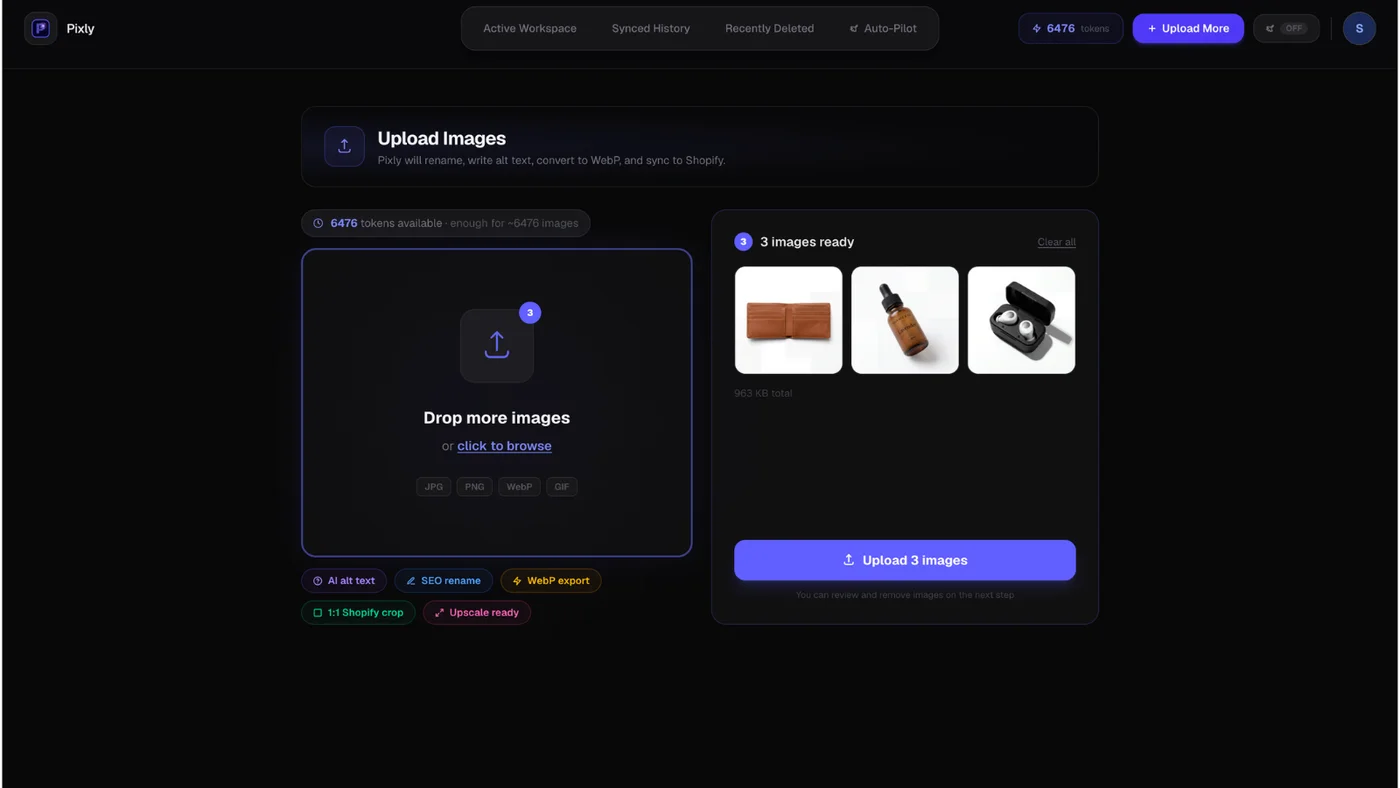
Pixly stores originals securely. Processing always works on a copy. See how it works for the pipeline details.
Step 3: Wait for AI analysis
Pixly uses Pixly's AI to read each photo and propose:
- Alt text (natural sentence, not a template)
- SEO filename (e.g.
blue-ceramic-mug-front.webp) - Low-resolution alert if min(width, height) is under 1500 px
Analysis runs automatically after upload. Open the job from your dashboard when status shows ready for review.
Step 4: Review before anything goes live
Every image lands in Review (Manual Review). You see:
- 1:1 square preview (center crop matches Factory output)
- WebP toggle (on by default; you can turn off per image)
- Upscale option when low-res alert is shown (4 extra tokens)
- Editable alt text and filename fields
This is the Review screen. Nothing syncs to Shopify until you approve:
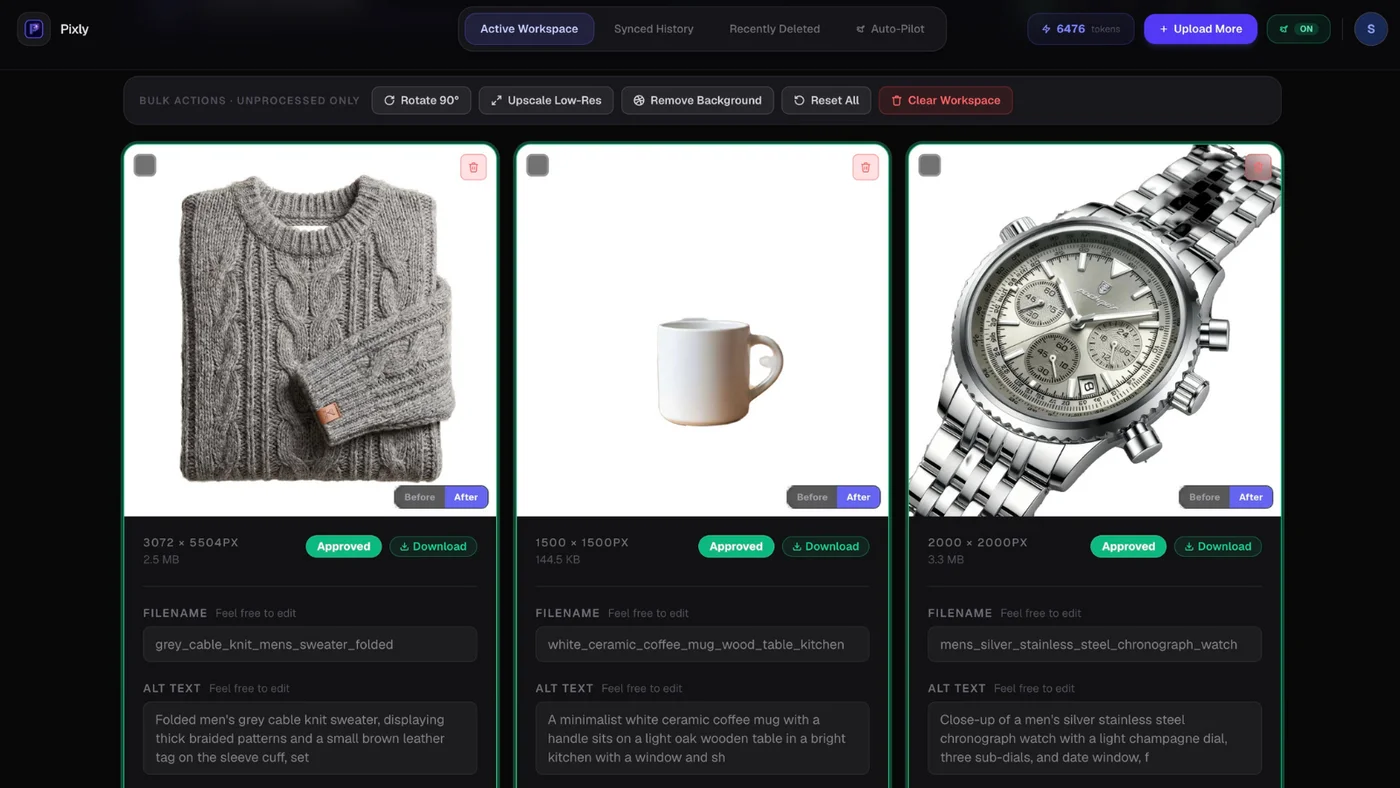
Use bulk approve when a batch looks good. You can still edit individual cards first.
Step 5: Sync to Shopify
After approval, Pixly runs the Factory pipeline:
- EXIF rotate (fixes sideways phone photos)
- Center crop to 1:1 square
- Resize to 2000 × 2000 px (2048 when upscaled)
- WebP export if enabled
- Push to Shopify with new file and alt text
Sync history logs every image that reached your store:

Click through to Shopify admin from history rows when you want to double-check a product page.
Step 6: Store Audit (Starter and above)
Store Audit scans your connected catalog for image SEO gaps: missing alt text, non-WebP images, products needing work.
Full guide: Shopify store audit for image SEO.
When you run a scan on Starter and above, Store Audit shows a catalog health score and flagged products on the Auto-Pilot page:
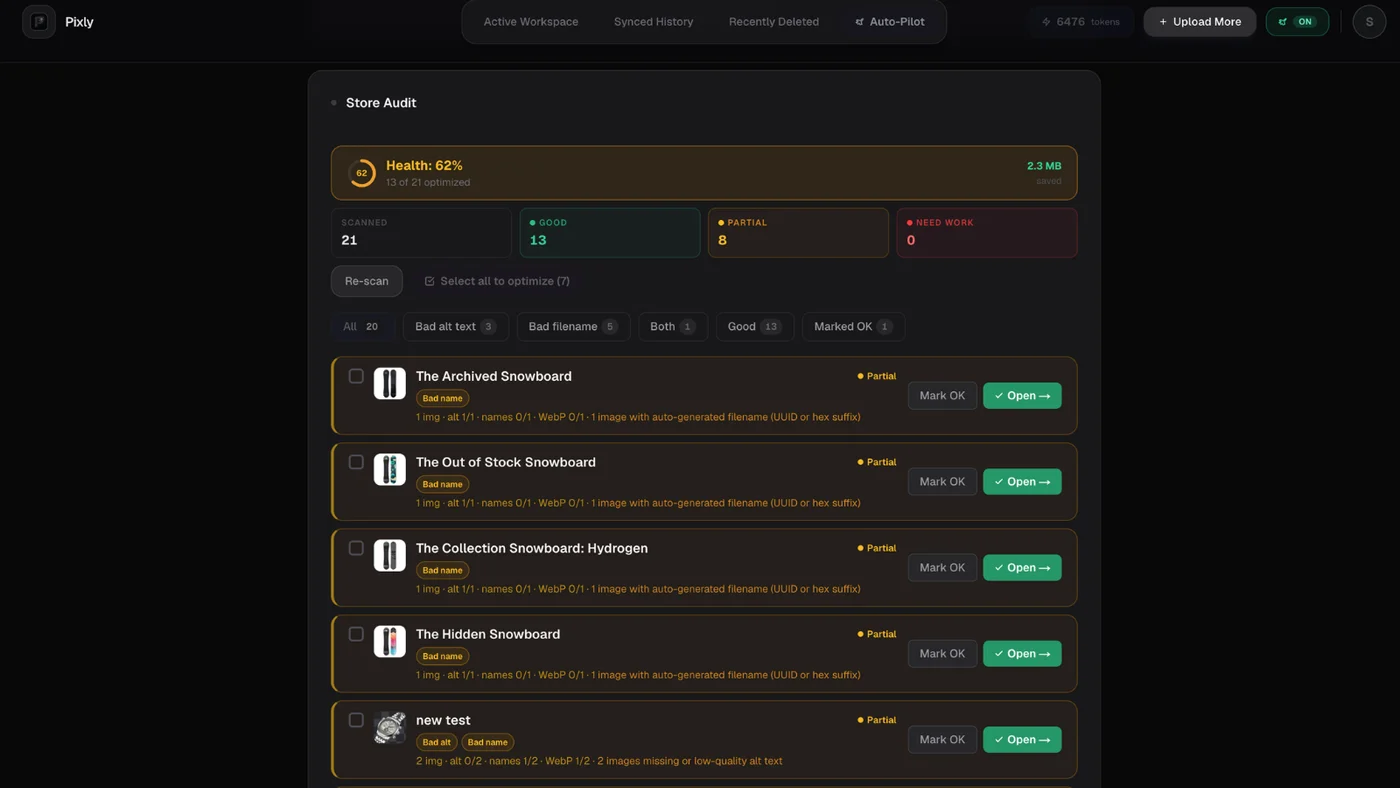
Queue flagged products into Review from Audit.
Step 7: Auto-Pilot (Growth and Scale)
Auto-Pilot watches for new Shopify products and queues analysis automatically.
- Semi-Auto: images land in Review for approval before sync.
- Full Auto (Scale): approved pipeline runs without manual review per image (use when you trust your defaults).
Configure daily caps and hints on the Auto-Pilot page:
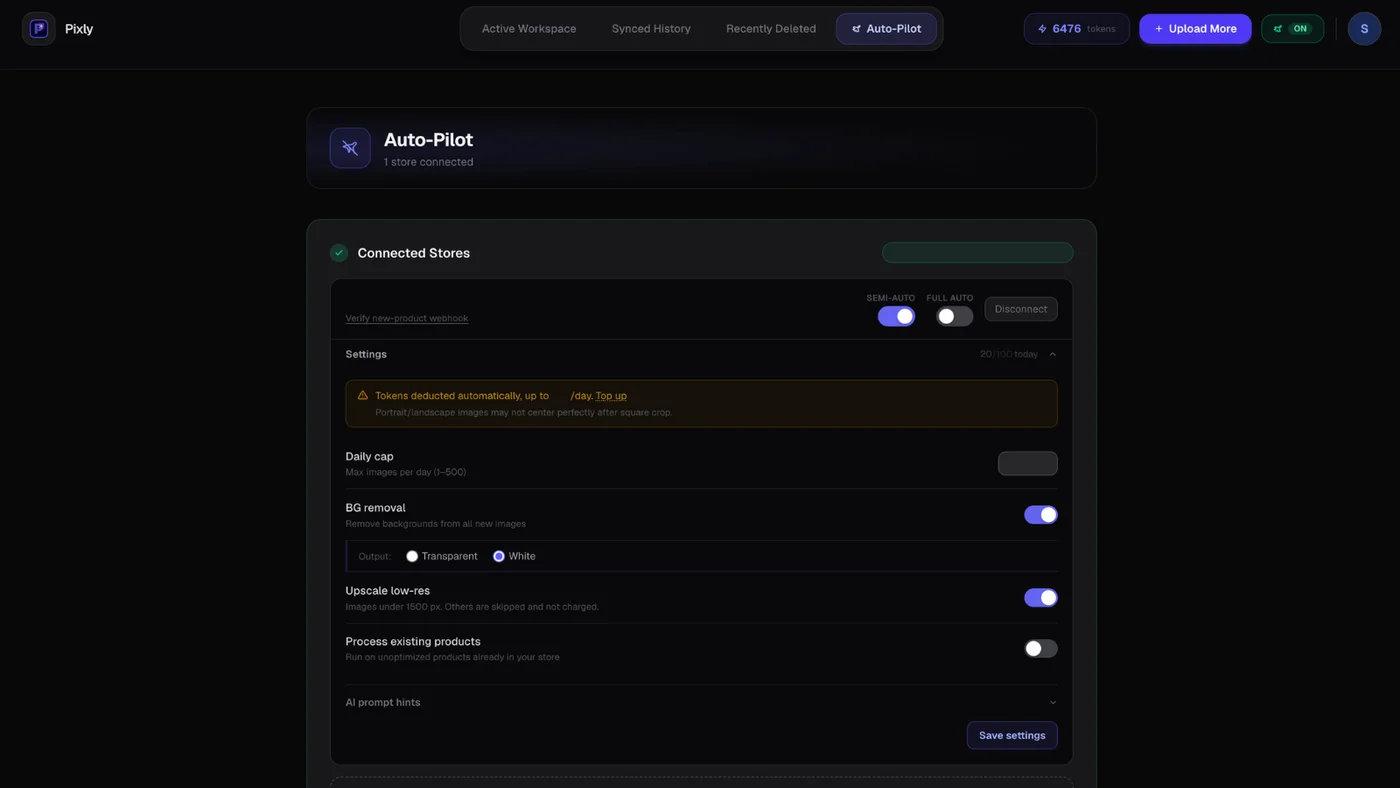
Available on Growth (Semi-Auto) and Scale (Semi-Auto or Full Auto).
Safety: Recently Deleted
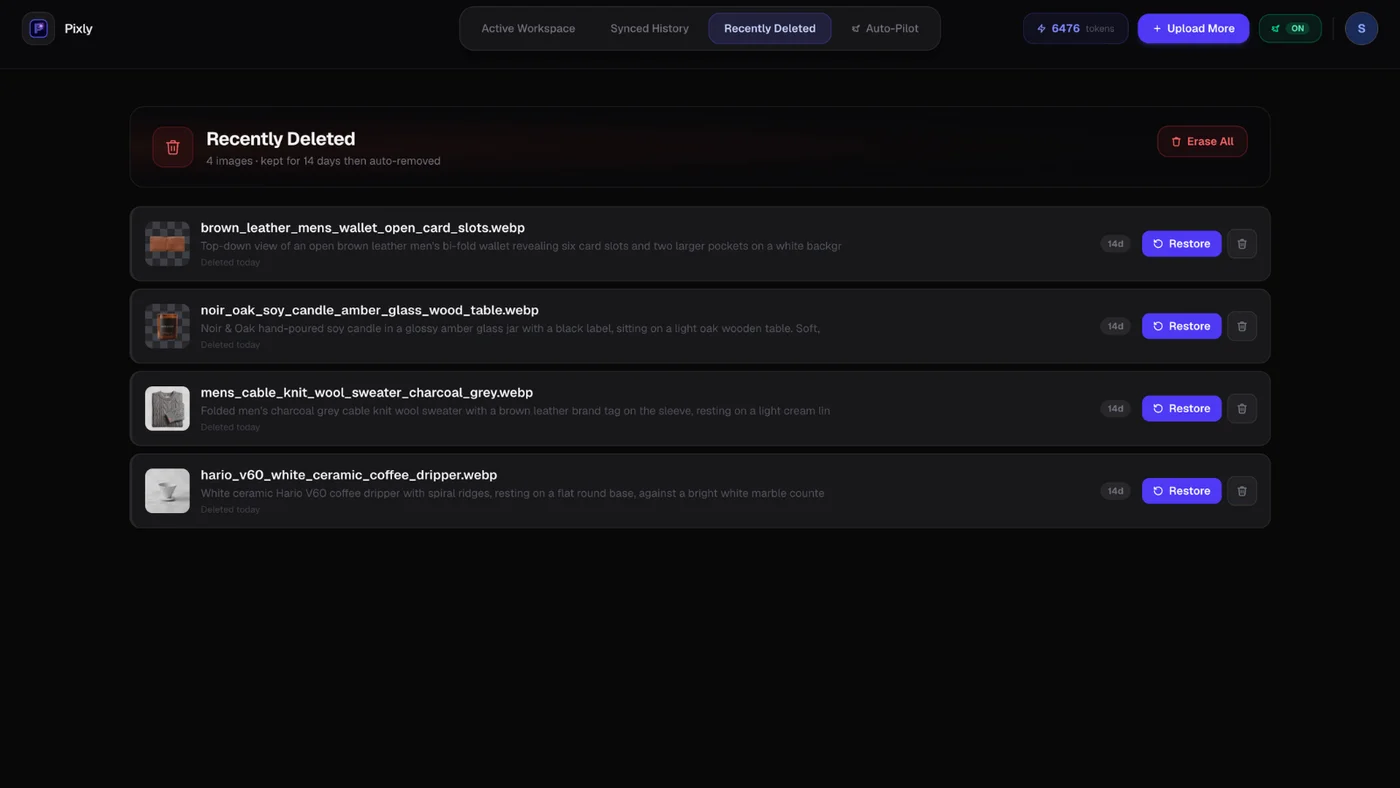
If you remove an image in Pixly, it moves to Recently Deleted for 14 days before permanent removal. Restore during that window if you change your mind:
Tokens and plans
| Plan | Tokens/month | Auto-Pilot | Store Audit |
|---|---|---|---|
| Free | 69 | No | No |
| Starter | 1,000 | No | No |
| Growth | 2,500 | Semi-Auto | Yes |
| Scale | 6,000 | Full Auto option | Yes |
Upscale costs 5 tokens total per image (1 base + 4 upscale). Top-up packs available for paid subscribers.
Got questions?
Frequently asked
Install from the App Store, upload or import product images, review alt text and WebP settings, approve, and sync. Start with 5–10 products on the free plan.
No. Pixly updates product media in your Shopify catalog. Theme banners and homepage heroes are edited separately in the theme customizer.
Yes. Every field is editable in Review. AI proposals are starting points, not forced output.
It stays out of sync. You can re-run analysis or upload a replacement.
See our honest roundup: best Shopify image optimization tools 2026.
What to read next
Bottom line
How to use Pixly: connect Shopify → upload/import → review alt text, filename, WebP, and crop → approve → sync. Store Audit and Auto-Pilot scale the same workflow across your catalog.
Install Pixly on Shopify and run your first batch today.
Pronto para deixar suas fotos de produto com cara de profissional?
Faça o quiz de 1 minuto para receber uma recomendação de plano ou comece grátis. Comece grátis com 69 tokens. Sem cartão.
Sem cartão de crédito · Cancele quando quiser
Mais do Pixly
- Como o Pixly funciona — envio, análise por IA, revisão e sincronização com a Shopify
- Recursos — Store Audit, Auto-Pilot, WebP, texto alternativo
- Preços — comece grátis com 69 tokens por mês
- SEO de imagens com Store Audit na Shopify (Guia 2026)
- Tamanho ideal de imagem na Shopify (Guia 2026)
- Como trocar imagens no site da Shopify (Guia 2026)
- Melhores ferramentas de otimização de imagens para Shopify (Guia 2026)