26. maj 2026 · 2 min. læsning
Slørede kollektionsbilleder i Shopify (guide 2026)
Ret slørede kollektionsbilleder i Shopify: forkert billedtype, uploads i lav opløsning, beskæring i temaet, og hvornår du skal opskalere produktbilleder vs. kollektionsbilleder.
Collection pages should sell the category at a glance. When Shopify collection images blurry complaints show up, the cause is usually the wrong asset type, a tiny upload, or a wide banner forced into a square tile.
This guide separates collection hero images from product grid photos, fixes each path, and covers upscale when masters are too small.
Two different "collection images"
| Image type | Where it lives | Common blur cause |
|---|---|---|
| Collection hero/banner | Products → Collections → Image | Upload too small for full-width display |
| Product thumbnails in grid | Each product's featured media | Low-res product photos scaled up |
Pixly optimizes product media, not collection hero banners. Fix hero art manually; fix product thumbs with catalog optimization.
Fix blurry collection hero images
- Go to Products → Collections → open the collection.
- Check current Image dimensions (right-click → open in new tab to see pixel size).
- Re-export at 1920 px wide minimum for full-width themes (height theme-dependent, often 600–1080 px).
- Upload sharp JPEG or WebP → add alt text → Save.
Theme-specific banner sizes: Shopify image banner specs.
Fix blurry product tiles on collection pages
Collection grids pull each product's featured image (first media item). If that file is 600 px wide, the theme stretches it and it looks soft.
Fix:
- Open the product → Media.
- Replace featured image with 2000 × 2000 px square master.
- Ensure first thumbnail is the sharpest angle.
For many products, use Pixly to flag low-res files and optional upscale:
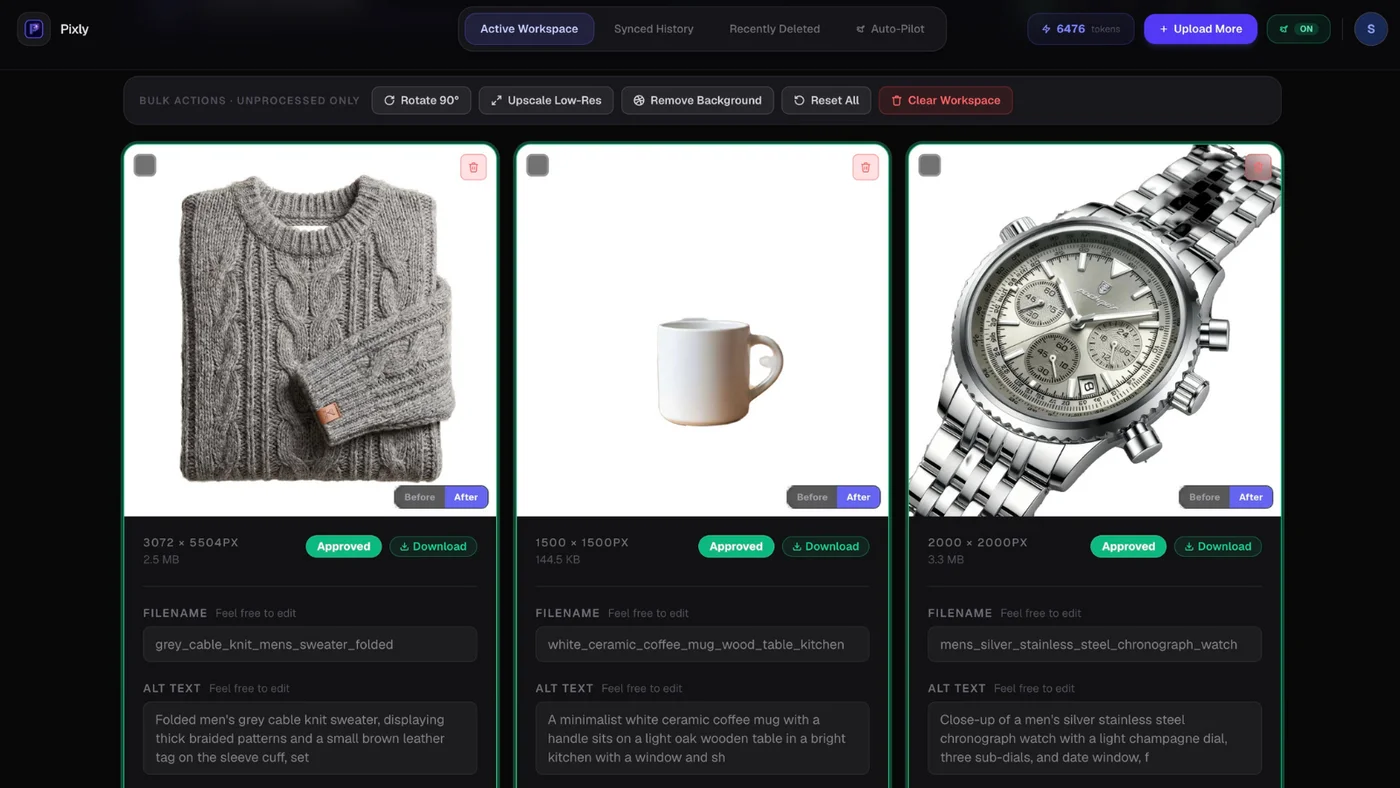
See upscale low resolution product images when re-shooting is not an option.
Theme crop and aspect ratio issues
Non-square product photos get center-cropped in many themes. A portrait shot may look fine on the product page but odd or soft in collection grids.
Prevention: Upload 1:1 square masters. Pixly applies center crop at review so you see the exact output before sync.
Got questions?
Frequently asked
Usually the uploaded file is too small, or product featured images are low resolution. Collection hero and product thumbs are different fixes.
Hero images: often 1920 px wide (theme-dependent). Product tiles: use 2000 px square product masters. See banner specs and size guidelines.
WebP reduces file weight but cannot add missing pixels. Upscale or re-upload sharper masters first.
View the collection on mobile and desktop after upload. Zoom the product page image separately from the collection hero.
Bottom line
Shopify collection images blurry splits into hero art (manual re-upload at correct width) and product grid thumbs (sharp square product masters). Fix product media at scale with review-first optimization.
Install Pixly on Shopify to flag and fix low-res product images across your catalog.
Klar til at give dine produktbilleder et løft?
Tag quizzen på 1 minut og få en anbefaling, eller kom i gang gratis. Kom i gang gratis med 69 tokens. Intet kort nødvendigt.
Intet kreditkort nødvendigt · Opsig når som helst
Mere fra Pixly
- Sådan virker Pixly — upload, AI-analyse, godkendelse, Shopify-synkronisering
- Funktioner — Store Audit, Auto-Pilot, WebP, alt-tekst
- Priser — kom i gang gratis med 69 tokens om måneden
- Opskaler Shopify-produktbilleder i lav opløsning (guide 2026)
- Shopify bannerbilleder: mål og specifikationer (guide 2026)
- Billedstørrelser i Shopify (guide 2026)