26 mei 2026 · 4 min leestijd
Foto's in bulk uploaden naar Shopify (gids 2026)
Foto's in bulk uploaden naar Shopify: CSV-import, limieten in de admin, mapworkflows en hoe je honderden productfoto's optimaliseert vóór de synchronisatie.
Launching 200 SKUs or refreshing a supplier catalog means one thing: you need to bulk upload photos to Shopify without living in admin for a week. Shopify supports bulk product creation, but image workflows have sharp limits.
This guide covers native bulk paths, where they break, and how to upload plus optimize at scale with review before anything goes live.
Quick comparison: bulk photo upload methods
| Method | Upload images? | Optimize + alt text? | Best for |
|---|---|---|---|
| Products → Import | Via CSV URLs only | No | New products with hosted image URLs |
| Shopify admin (multi-select) | Limited per product | No | Small batches |
| Third-party import apps | Yes | Varies | Migrations |
| Pixly (import + review + sync) | Yes | WebP, alt, crop, filenames | Catalog optimization at upload time |
Method 1: CSV product import with image URLs
Shopify's product CSV accepts an Image Src column with public URLs.
- Host images on a server or drive with direct links.
- Build a CSV with handle, title, and Image Src.
- Go to Products → Import → upload CSV.
Limits:
- URLs must be reachable when Shopify fetches them
- No built-in resize, WebP, or alt text generation
- Errors on bad URLs fail rows silently or in import logs
- Variant image mapping gets messy fast
Works for migrations. Weak for ongoing SEO optimization.
Method 2: Upload many files per product in admin
For a single product you can drag multiple files into Media.
- Products → open product.
- Drag a folder of images into Media.
- Assign images to variants if needed.
- Save.
You still edit one product at a time. At 100 products this is not a bulk workflow, it is repetitive manual work.
Method 3: Bulk upload with optimization (Pixly)
Pixly treats bulk upload as the start of a pipeline, not the end.
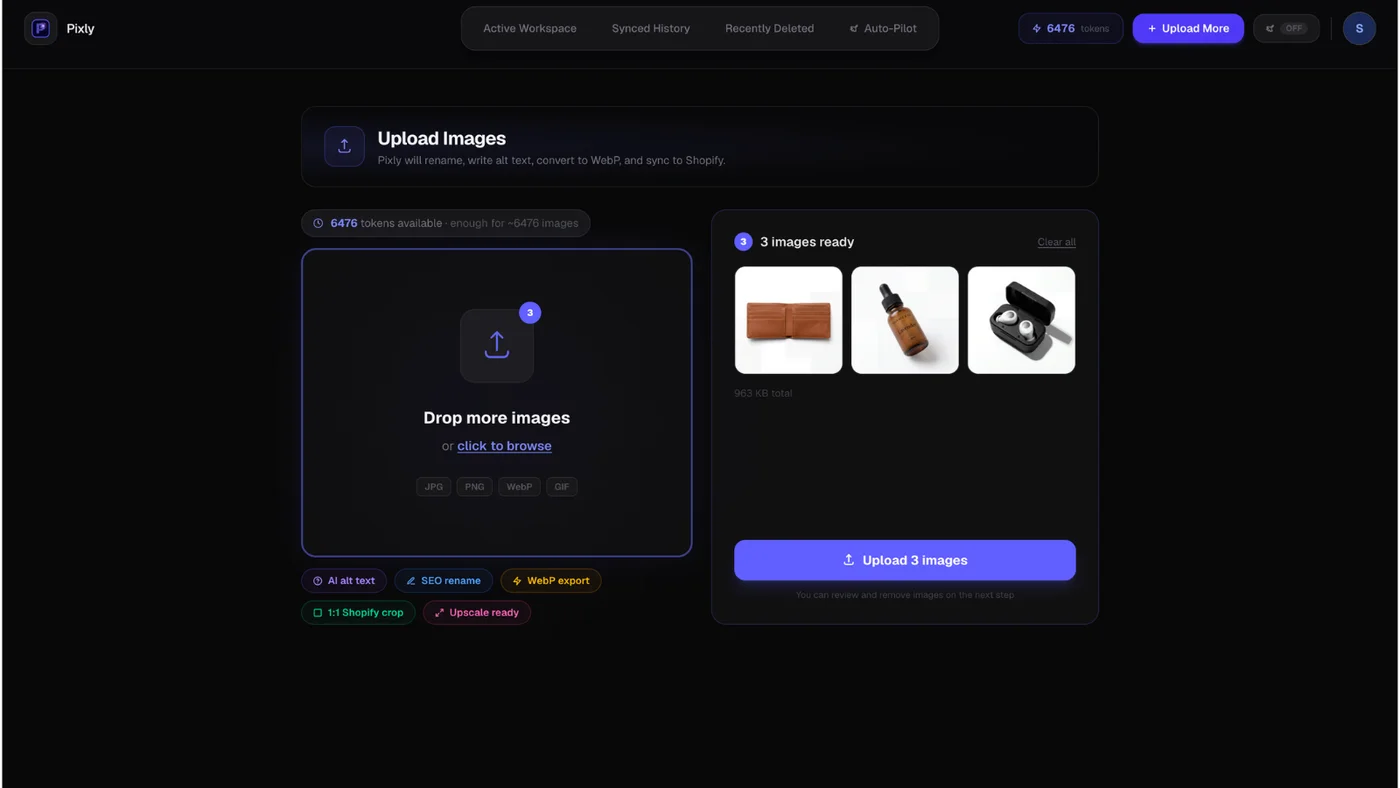
Step 1: Upload or import from Shopify
Drag local files or pull existing product media from your connected store:
Step 2: Review each image
Before sync, check square crop, WebP setting, alt text, and SEO filename:
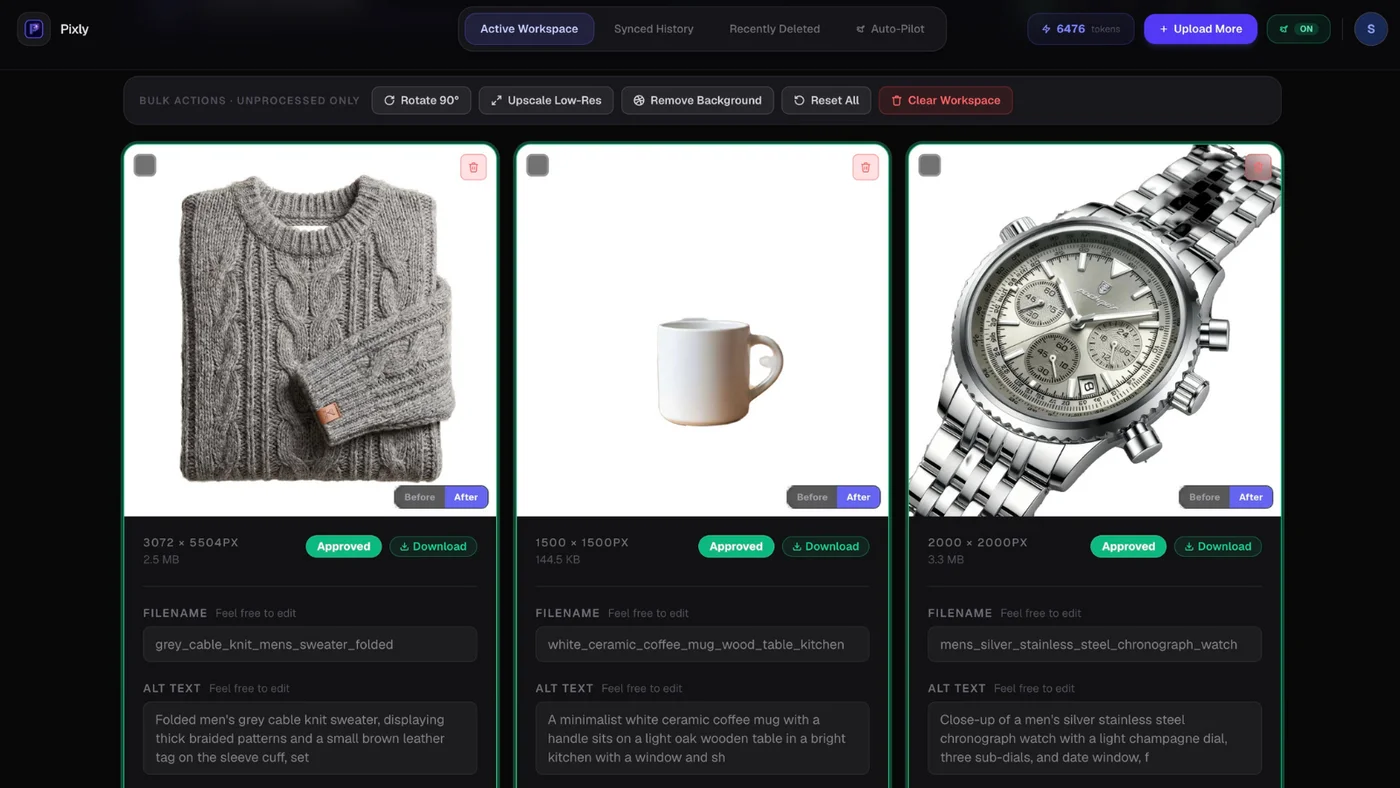
Bulk approve when a batch looks consistent.
Step 3: Sync back to Shopify
Optimized files and metadata push to product media via the Admin API:

Time saved: Manual upload plus alt text on 30 images runs about 3.5 hours. The same batch in Pixly is roughly 3.5 minutes after review, per our how it works benchmarks.
Prepare files before any bulk upload
| Check | Target |
|---|---|
| Dimensions | ~2000 × 2000 px square for product photos |
| Format | WebP or JPEG; WebP preferred for weight |
| Filenames | Descriptive slugs, not IMG_4832.jpg |
| Naming consistency | Match CSV handles or SKUs if importing |
| Folder structure | One folder per product or SKU label |
See Shopify image size guidelines for full specs.
Bulk upload mistakes to avoid
- Uploading 4000 px masters when 2000 px is enough (slow pages)
- Skipping alt text on every image in the batch
- Mixing portrait and square photos (uneven collection grids)
- Importing CSV image URLs that expire before Shopify fetches them
- Syncing hundreds of images without a 10-product pilot first
Got questions?
Frequently asked
Yes, via CSV import (image URLs), third-party apps, or a workflow like Pixly that imports, optimizes, and syncs product media.
Per product: drag multiple files into Media. Store-wide: use CSV import or an app. For optimize-then-sync, use Pixly.
CSV import supports Image Src URLs. You cannot bulk attach local files from your computer through CSV alone without hosting them first.
20 MB per file and 4472 × 4472 px max dimensions per Shopify docs. Smaller optimized files load faster.
Generate alt text during review, then sync. See how to bulk edit alt text in Shopify.
Bottom line
Bulk upload photos to Shopify is possible through CSV and apps, but native tools stop at file delivery. If you also need WebP, square crops, alt text, and SEO filenames, upload through a review-first pipeline.
Install Pixly on Shopify and run your first bulk batch on the free plan.
Klaar om je productfoto's op te poetsen?
Doe de quiz van 1 minuut voor een abonnementsadvies, of begin gewoon gratis. Begin gratis met 69 tokens. Geen creditcard nodig.
Geen creditcard nodig · Altijd opzegbaar
Meer van Pixly
- Zo werkt Pixly — uploaden, AI-analyse, controleren, synchroniseren met Shopify
- Functies — Store Audit, Auto-Pilot, WebP, alt-tekst
- Prijzen — begin gratis met 69 tokens per maand
- Afbeeldingen wijzigen op je Shopify-website (gids 2026)
- Alt-tekst in bulk bewerken in Shopify (gids 2026)
- Shopify afbeeldingsformaten: richtlijnen (gids 2026)