26 mai 2026 · 4 min de lecture
Comment empêcher Shopify de compresser vos images (guide 2026)
Comment empêcher Shopify de compresser vos images : ce que fait le CDN, pourquoi on ne peut pas totalement le désactiver, et comment garder la main sur la qualité avec des fichiers WebP.
Merchants upload a crisp product photo and see a softer version on the storefront. How to stop Shopify from compressing images is a fair question. The short answer: you cannot turn off Shopify CDN optimization entirely. You can control what you upload and how heavy each file is.
I run a Shopify-focused image app, and this is the pattern I see most often: the upload is already soft or over-compressed before Shopify ever touches it.
This is the hub guide for compression on Shopify. Shorter answers:
- Does Shopify compress images? (yes/no explainer)
- Shopify reduce image file size (practical file weight tips)
- Convert all images to WebP (format workflow)
What Shopify actually does to your images
When you upload product media, Shopify stores your file and serves resized variants through its CDN. The platform may:
- Generate smaller widths for thumbnails and collection grids
- Serve modern formats (WebP, AVIF) when the browser supports them
- Apply compression as part of delivery optimization
You do not get a toggle in admin that says "disable compression." Per Shopify's product media documentation, uploads can be up to 20 MB and 4472 × 4472 px, but lighter files still load faster on mobile.
Why "stop compressing" usually means "stop looking soft"
Three separate problems get lumped together:
| Problem | What you see | Fix |
|---|---|---|
| Low pixel count | Blurry zoom | Upload 2000 px+ masters or upscale before upload |
| Heavy JPEG re-save | Banding, mushy detail | Export once at quality 80–85; avoid re-upload loops |
| CDN resize | Fine on desktop, soft on mobile | Upload a sharp master; CDN picks appropriate variant |
Compression is not always the villain. A 800 px wide source looks soft no matter what CDN settings run.
Manual strategy: upload files Shopify has less to "fix"
- Resize before upload to about 2000 × 2000 px square for product photos. See Shopify image size guidelines.
- Export WebP or high-quality JPEG once. Do not re-export the same image ten times.
- Avoid unnecessary megapixel bloat. 4000 px files add weight without visible gain on most phones.
- Preview on mobile after upload. That is where compression artifacts show first.
Can you disable Shopify image compression?
No official setting disables CDN optimization store-wide. Theme code and third-party CDNs can change delivery paths, but Shopify-hosted product media still flows through Shopify infrastructure.
What you can control:
- Source file dimensions and format before upload
- Whether you pre-compress to WebP yourself
- Which images you replace vs leave as-is
Control quality with pre-upload WebP (Pixly workflow)
Instead of fighting the CDN, upload already optimized masters so Shopify starts from a smaller, sharp file.
Pixly converts approved product images to WebP by default, applies a 1:1 center crop, and syncs back after you review:
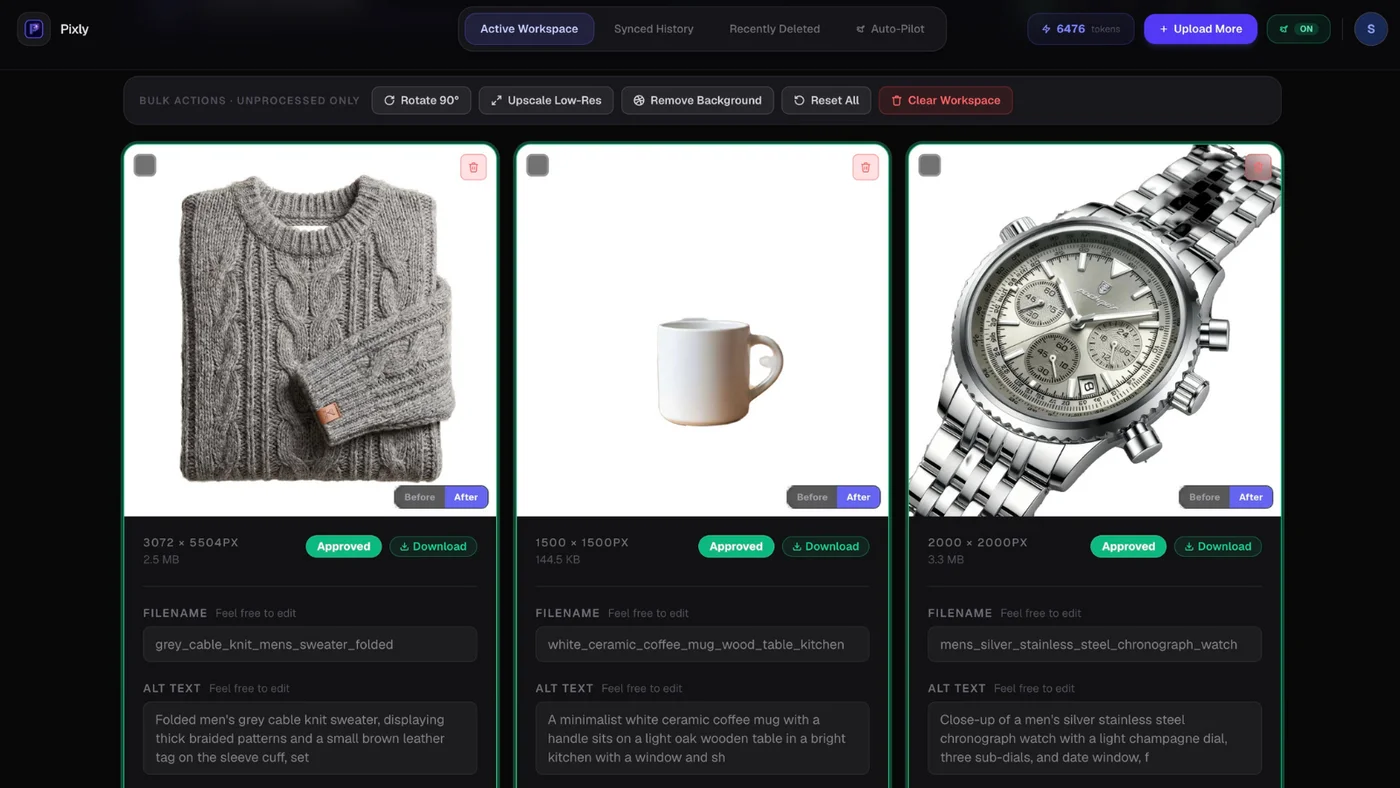
Sync history confirms optimized files reached Shopify:

You stay in control: nothing syncs until you approve. See convert all images to WebP on Shopify for the bulk format workflow.
When to accept compression vs re-upload
Accept CDN delivery when:
- The master is 2000 px+ and looks sharp at zoom
- File size is under ~500 KB after your export
- Page speed scores improved vs the old heavy JPEG
Re-upload or re-process when:
- Banding appears in gradients (common on over-compressed JPEGs)
- Text overlays in marketing images look fuzzy (theme assets, not product media)
- You changed photography and need new masters anyway
Got questions?
Frequently asked
You cannot fully disable Shopify CDN optimization. Upload sharp, right-sized WebP or JPEG masters (about 2000 px square) so delivery starts from a good source.
Shopify stores your upload and serves optimized variants through its CDN. The visible result depends on your source resolution and format. See does Shopify compress images.
Often the source is too small (under 1000 px on the short side), or the file was re-compressed multiple times. Check pixel dimensions first, not just file type.
WebP usually delivers smaller files at similar visual quality, which helps page speed. Pixly converts to WebP on approval before sync.
No. Faster pages and proper alt text help SEO. Use descriptive filenames and alt text with optimized files.
Bottom line
How to stop Shopify from compressing images is really how to upload images Shopify does not need to over-process. Right-size pixels, export WebP once, and avoid tiny sources. For catalogs, pre-optimize with review before sync.
Install Pixly on Shopify to convert and sync WebP product images after approval.
Prêt à sublimer vos photos produit ?
Faites le quiz d'1 minute pour obtenir une recommandation de forfait, ou commencez gratuitement. Commencez gratuitement avec 69 jetons. Sans carte bancaire.
Sans carte bancaire · Résiliable à tout moment
Plus de contenus Pixly
- Comment fonctionne Pixly — import, analyse par l'IA, validation, synchronisation Shopify
- Fonctionnalités — Store Audit, Auto-Pilot, WebP, texte alternatif
- Tarifs — démarrez gratuitement avec 69 jetons par mois
- Shopify compresse-t-il les images ? (guide 2026)
- Convertir toutes les images Shopify en WebP : le guide 2026
- Comment accélérer votre boutique Shopify (guide 2026)