2026년 5월 26일 · 3분 읽기
Shopify 상품 이미지 자동 최적화 가이드 (2026)
Auto-Pilot으로 Shopify 신규 상품 이미지를 자동 최적화하세요. Semi-Auto와 Full Auto의 차이, 일일 한도, 웹훅, 검토 후 동기화 방식을 소개해요.
Every new SKU you add is another chance to ship heavy JPEGs and blank alt text. Shopify auto optimize new product images sounds like a dream until an app overwrites your catalog without asking. Pixly Auto-Pilot watches new products and queues optimization, with modes that keep you in control.
This guide explains Semi-Auto vs Full Auto, plan limits, and how Auto-Pilot fits the review-first pipeline.
What Auto-Pilot does
When enabled on a connected store, Auto-Pilot:
- Detects new or updated products via Shopify webhooks
- Queues product media for the Pixly pipeline (alt text, WebP, square crop, filenames)
- Runs analysis based on your mode (Semi-Auto or Full Auto)
- Syncs only according to your approval rules
Auto-Pilot focuses on product media, not theme banners or collection hero art.
Semi-Auto vs Full Auto
| Mode | Behavior | Best for |
|---|---|---|
| Semi-Auto | Processes new products; you review and approve before sync | Most merchants starting out |
| Full Auto | Processes and syncs without per-image review (Scale plan) | High-volume stores with trusted presets |
Default Pixly workflow keeps review before sync unless you explicitly enable full automation on eligible plans.
Enable Auto-Pilot in Pixly
Open Auto-Pilot from the Pixly nav on a connected store:
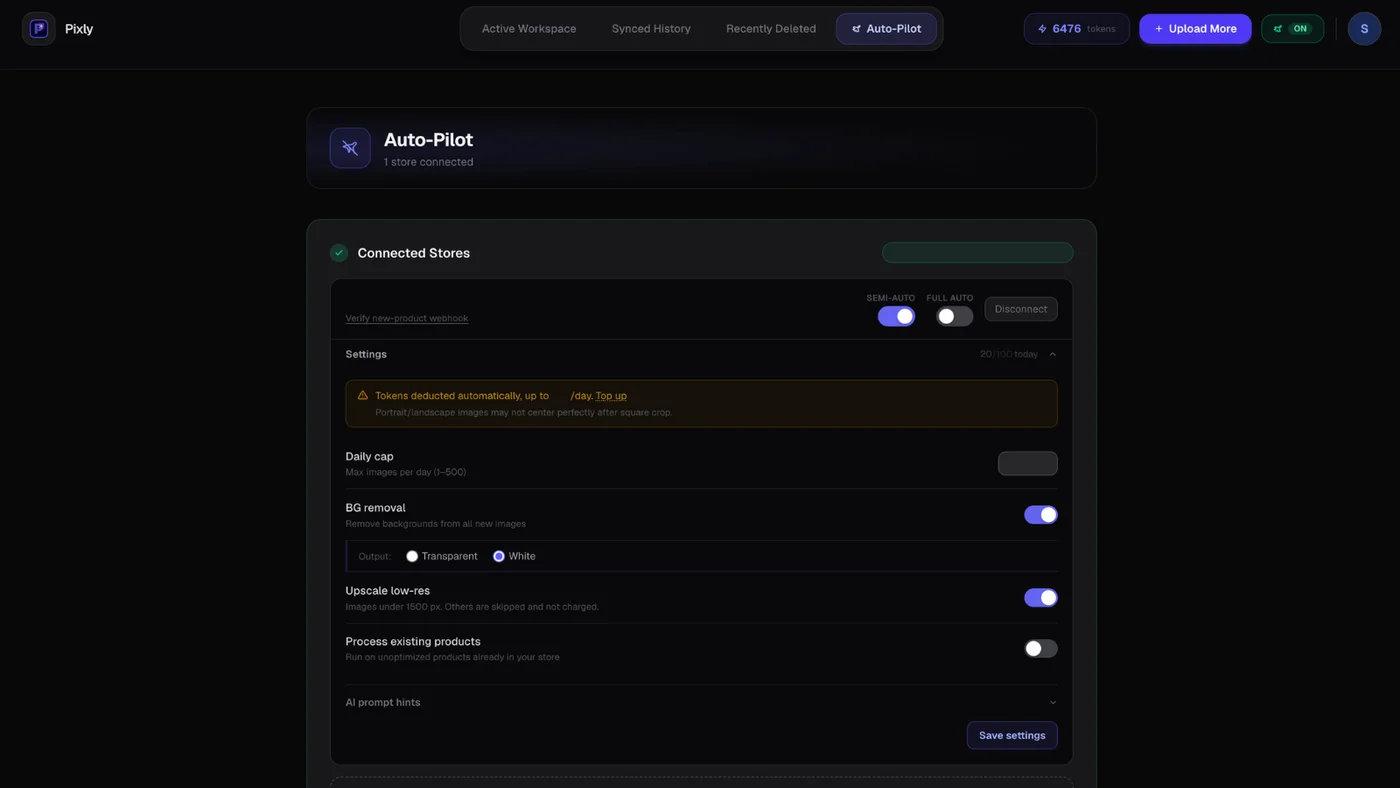
- Choose Semi-Auto or Full Auto (plan-dependent).
- Confirm the store webhook is connected (Pixly handles this on install).
- Add a new test product in Shopify with at least one image.
- Watch the job appear in Pixly workspace or suggested queue.
- Review output before sync on Semi-Auto.
Daily limits by plan
Auto-Pilot requires a Growth or Scale plan. It respects token budgets and daily caps on your tier. See Pixly pricing for current limits.
If you hit the cap, new products queue for the next window rather than failing silently.
Auto-Pilot vs manual upload
| Workflow | Trigger | Control |
|---|---|---|
| Manual upload | You drag files or import catalog | Full per-batch review |
| Store Audit | You scan existing catalog gaps (Starter and above) | Prioritized backlog |
| Auto-Pilot | New product in Shopify | Ongoing, mode-dependent review |
Use Auto-Pilot so new products never ship unoptimized. Run Store Audit once (Starter and above) to fix historical gaps.
What Auto-Pilot optimizes
On each approved image (defaults):
- WebP conversion (on by default)
- 1:1 center crop at 2000 × 2000 px (2048 when upscale approved)
- AI alt text from visual analysis
- SEO filename proposal
- Optional AI upscale when low-res alert triggers (your approval, +4 tokens)
Nothing replaces your originals in Shopify until sync completes.
Setup checklist
- Connect Shopify store via OAuth (no password stored)
- Enable Auto-Pilot mode on Growth+ plan if required
- Run a test product with Semi-Auto first
- Confirm sync in Sync history

Got questions?
Frequently asked
Shopify CDN optimizes delivery but does not write alt text, rename files, or batch-convert your catalog. Auto-Pilot apps like Pixly handle product media optimization on new SKUs.
New products are processed automatically, but you approve images before they sync to Shopify.
On eligible plans, Full Auto can sync without per-image approval. Enable only when you trust your presets.
Auto-Pilot targets new and updated products. Use Store Audit or manual import for existing catalog gaps.
Pixly works on copies; you approve before sync on Semi-Auto. Soft-deleted images can be recovered within 14 days.
Bottom line
Shopify auto optimize new product images should not mean blind overwrite. Auto-Pilot queues new SKUs through the same pipeline as manual uploads, with Semi-Auto keeping review in the loop.
Install Pixly on Shopify and enable Auto-Pilot on your test store first.
상품 사진, 깔끔하게 다듬어 볼까요?
1분 퀴즈로 맞는 플랜을 추천받거나 바로 무료로 시작하세요. 69 토큰으로 무료 시작이에요. 카드는 필요 없어요.
카드 등록 불필요 · 언제든 해지 가능
Pixly 더 알아보기
- Pixly 사용 방법 — 업로드, AI 분석, 검토, Shopify 동기화
- 기능 — Store Audit, Auto-Pilot, WebP, 대체 텍스트
- 요금제 — 매달 69 토큰으로 무료 시작
- Shopify Store Audit 이미지 SEO 가이드 (2026)
- Shopify에서 Pixly 사용하는 방법 (2026 가이드)
- Shopify 사진 대량 업로드 방법 (2026 가이드)
- Shopify 사이트 이미지 교체하는 방법 (2026 가이드)